
Upgrading the Firmware
This page contains the step-by-step instructions for upgrading the firmware on the NTRIP Base Station.
From time to time, Racelogic may release new versions of firmware to improve the operation of the NTRIP Base Station. You should do periodical checks on the VBOX Automotive website for updates to make sure that you have the latest firmware version installed on your unit.
Equipment
- PC/Laptop
- Racelogic Upgrader Software
- NTRIP Base Station
- USB-A to USB-B cable (RLCAB117)
- NTRIP Base Station Firmware File
Updating the Firmware
- Download the latest NTRIP Base Station firmware file from the VBOX Automotive website.
- Connect the RLCAB117 cable (USB cable) between the USB-B port on the right-hand side of the NTRIP Base Station and the USB-A port on the PC.
- Make sure that other software applications that may try to use the COM port communications, such as VBOX Setup, are closed.
- Either double-click on the ‘.ruf’ firmware upgrade file (this will auto-run the Racelogic Upgrader software) or run the Racelogic Upgrader software and load the ‘.ruf’ firmware upgrade file.
|
Note: Make sure you are using the latest version of the Racelogic Upgrader. |
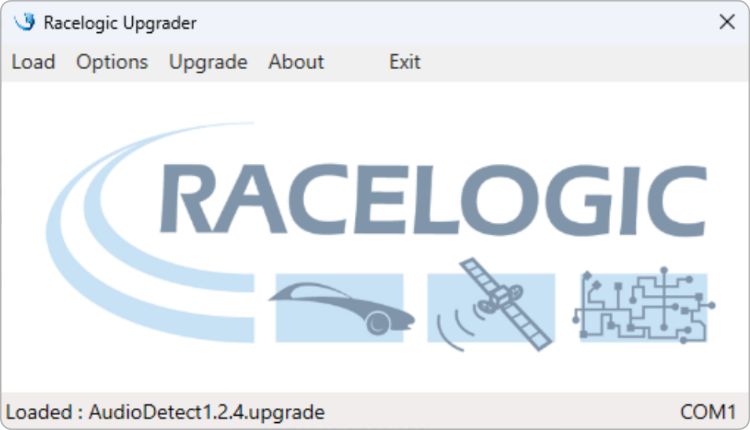
- Select the correct COM port under Options and click Upgrade to start the process.
- The software will alert you when the update has been completed.