
Home
The Home tab is the main area of the software. It contains controls for the central operation of the software.

View
Layout
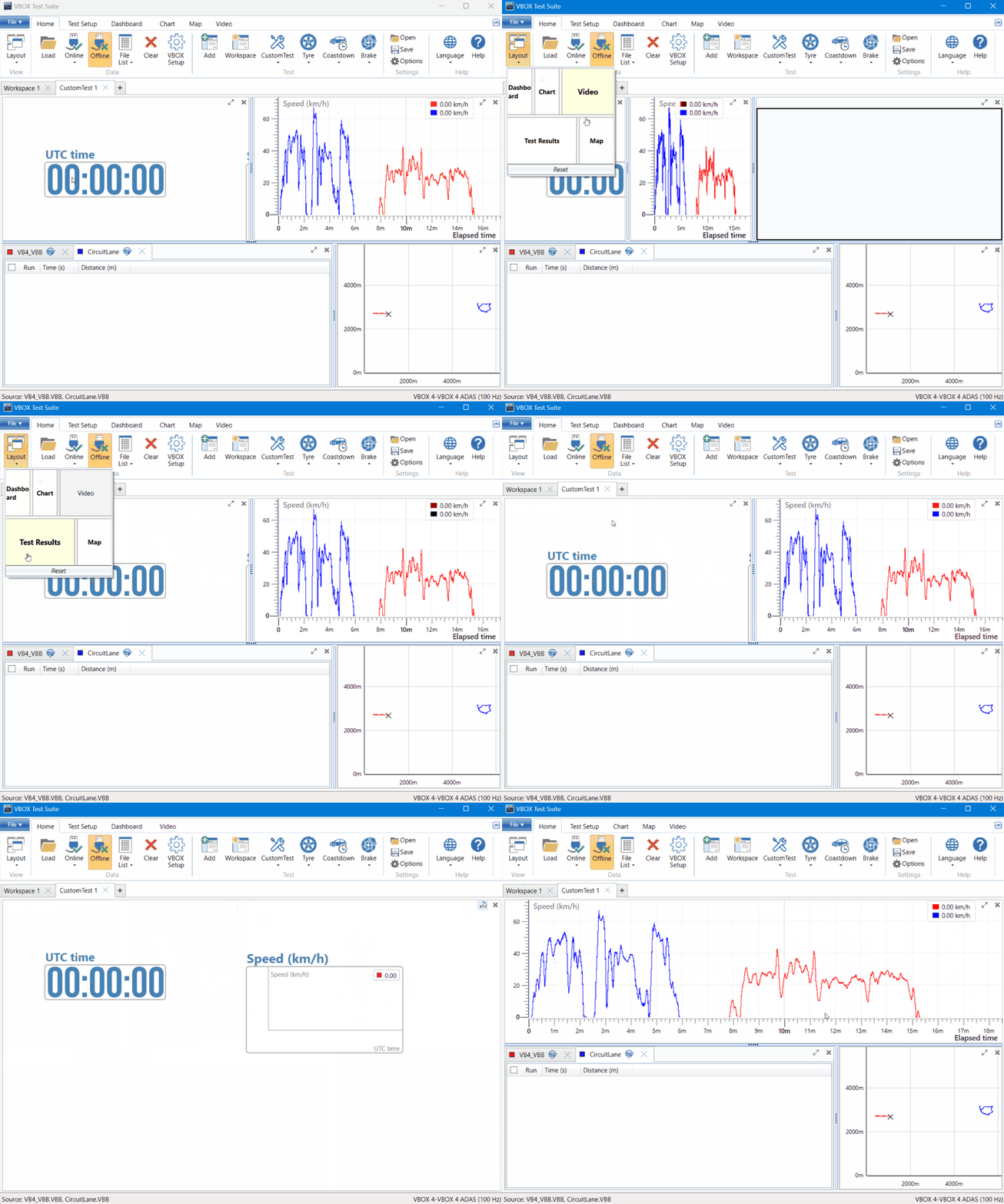
Click on the Layout button to open the dropdown and define the areas you want to display in the Workspace. The contents of this dropdown will change depending on the selected plugin.
The dropdown shows all available areas for the Workspace, which ones are used, and their position on the screen. Click on an area in this dropdown to use/hide it in the Workspace. You can also change the layout of the Workspace by clicking on and dragging an area to the desired location in the window. Click on the Reset button at the bottom of the Layout dropdown to restore the layout to the default settings.
Each area in the Workspace has Maximize and Minimize buttons in the top right-hand corner. The Maximise button will make that area fill the whole screen in the Workspace, automatically hiding all other areas. If you click the button again while the area is maximised, it will return it to the previous size and location. The Minimise button will automatically hide the area. If you hide an area and you want to add it back, you must open the Layout dropdown and click on the area you want to add.
Data
Load
 |
When in Offline mode, you can load VBOX data files (.vbo, .vbb, .dbn and .asc files) for post processing. Click on Load to open a File Explorer window where you can navigate to where the file is located. Click on the Open button when you have selected the relevant file. VBOX Test Suite will load the file and automatically populate the Test Results area for any open tests. Click on the Cancel button during the loading process to stop the file from loading into the software. |
| Note: If you are loading a .vbb file that contains data with no position at the start of the file, VBOX Test Suite will present a prompt, asking you to approve the removal of the invalid data or select to load the full regardless. If you choose to load the truncated file, you will need to load it again if you need to view the complete file at a later stage. |
Online
 |
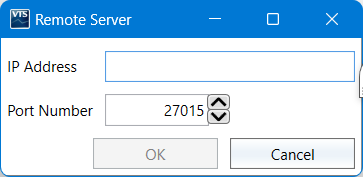
Remote Server
Refresh channel names
|

|
Note: You can cancel the connection before the software has fully opened online communications by selecting the X button next to the progress bar in the bottom left of the software window. |
Offline
 |
When in Online mode, click on the Offline button to set the software to Offline mode, where you can load a data file and post-process the results. |
File List
 |
Click on the File List button to open a drop down list of all currently open files in the software. You can close individual files by clicking on the X next to the file name or you can close all open files by clicking on the Close All Files button. |
Clear
 |
Click on the Clear button to clear/close all active sessions and any data that has accrued in the map window in both Offline and Online mode. The software will display a warning telling you that all data will be cleared if you continue. Even if all files are cleared, the available channels (selected channels) of the last loaded file will be remembered in the chart, gauges, test settings, and columns (where the channel list is applicable). This is useful if you are opening multiple files with the same CAN channels. |
VBOX Setup
 |
Sometimes you may want or need to edit the configuration for the connected VBOX unit(s) in VBOX Setup during your work in VBOX Test Suite. To make it easier for you, you can open VBOX Setup directly from VBOX Test Suite by clicking on the VBOX Setup button on the Home tab. You can find further information about how to use VBOX Setup in the user manual for your connected VBOX unit. |
Test
Add
 |
Click on Add Test to open a popup window where you can select a test from a list of available pre-set tests.
Click on the star next to a test to set the test as a favourite and make it accessible in the relevant test dropdown menu on the Home tab. You can find more information about the available tests here. |

Workspace
 |
Click on the Workspace button while in a test tab to change the selected test tab to a Workspace. |
Test Menus
The available test categories and the tests in them in the Test section of the Home tab will change depending on your the tests you have favourited in the Add Test window.
Click on a Test button to see the dropdown menu with a list of the selected pre-defined tests and an option to create a new test.
If you click on the New Test button, the Settings window will open where you can configure your new test.
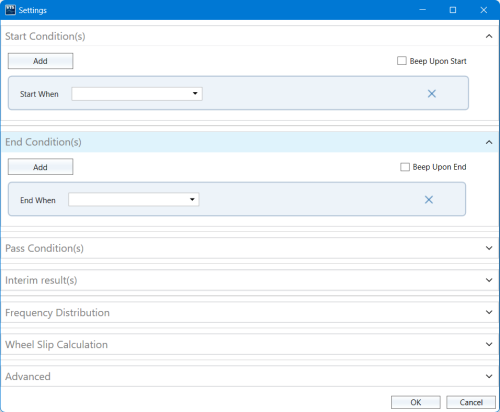
Selecting a test will replace the current test tab.
Creating a new test will add a new tab to the Workspace.
Settings
 |
Open
Click the Open button to open File Explorer and navigate to the relevant file location of an already saved configuration file (.vbts).
Save
Click the Save button to create and save a configuration file (.vbts) of the current configuration. This configuration file will include all open tests and test configurations, and all dashboard and chart layouts.
Options
 |
The Options button allows the user to specify the units and decimal places to be displayed of:
These settings will be applied to the whole software and you will see the effect in the dashboard gauges, the chart legend and the Test Results table. |
- When the Automatically export reports option is ticked, VBOX Test Suite will create and save a watermarked .pdf of a report when you click the Report button in any test.
- When the Enable hardware acceleration for video playback option is ticked (enabled by default), VBOX Test Suite will use GPU acceleration for video playback. While this may not be required for desktop machines, VBOX Test Suite can struggle just using CPU acceleration when playing more than one video on lower powered machines such as laptops and tablets.
- When the Automatically check for updates option is ticked (enabled by default), the software will automatically check to see if a newer version is available when a valid internet link is detected. Untick the box to stop the automatic checks. The software will only search for newer versions when you select Check For Updates in the File menu.
- You can decide how VBOX Test Suite will behave when you load a .vbb file that does not have a position fix at the start by choosing the preferred option in the When loading a .vbb file with no position fix at start: setting.
- Warn
VBOX Test Suite will display a warning. - Skip Start
VBOX Test Suite will remove the part of the data that does not have position fix. - Show All
VBOX Test Suite will load the file as is.
- Warn
- When the Auto save file when online session stops option is ticked, VBOX Test Suite will automatically save a .vbo file every time you stop a session in Online mode. When this is enabled, you will get the option to assign the following:
- File Name Prefix
- Auto save output folder
- When the software language has been changed to a language that is not English, a Reports in English only option is available (unticked by default). This will translate the content of the reports to English.
Help
Language
 |
This option will change the language of the software. Available languages include: English (default), Chinese, French, German, Italian, Japanese, Korean, Portuguese, Russian and Spanish.
|
Help

Click on Help to automatically open an Internet browser and load the relevant section of the User Guide on the Racelogic Support Centre.
| Note: This page will only be displayed if there is a valid internet connection. If there is no valid internet connection, a cached version of the relevant section (from the last software update) will be presented in PDF form. |