
06 - VBOX Sport Laptimer iOS Application
Introduction
|
The VBOX Laptimer App works with your VBOX Sport. VBOX Sport uses a high-accuracy GNSS receiver to enhance the capabilities of your Apple device. When connected to a VBOX Sport, the Laptimer app can use its 10 Hz GNSS data stream transmitted via Bluetooth. By collecting GNSS data 10 times per second, the VBOX Sport provides a level of accuracy that is currently unheard of with iPhone and iPad apps. The VBOX Laptimer app uses this data to provide you with accurate lap times and predictive lap times. You can use your Apple device to display live driver feedback, such as your current speed, your current lap time, your predicted lap time, or a list of previously logged lap times |
How to Download the VBOX Laptimer App
| You can download the VBOX Laptimer app for free from the App Store. |

Overview
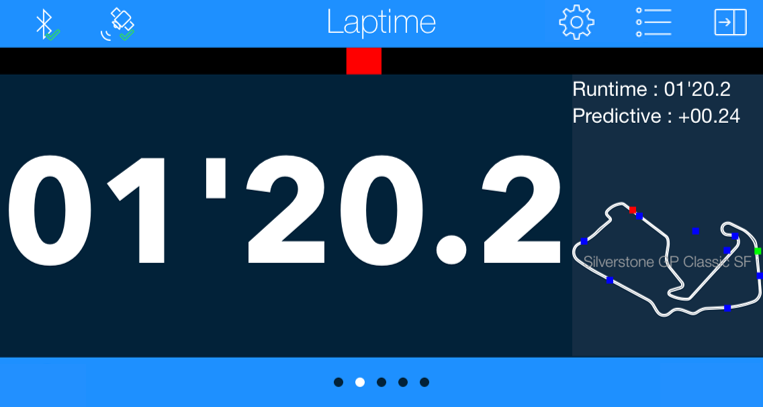
| VBOX Sport Connection Indicator |  |
|
GNSS Connection Indicator Note: The GNSS connection indicator refers to the GNSS connection for the VBOX Sport. If you are using the app standalone, with the internal GNSS engine from the iOS device, the GNSS connection indicator will indicate no connection. |
 |
| Selected Mode |  |
| App Settings |  |
| Circuit Options |  |
| Hide Side Bar |  |
| Delta-V Bar |  |
| Live Data |  |
| Circuit Map with Position Markers |  |
| Available Modes |  |
Circuit Test – Detected Circuit
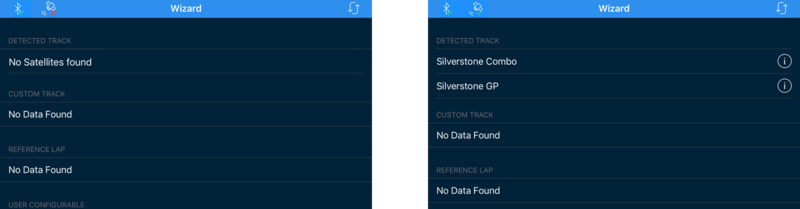
| When the app has connected to your VBOX Sport, you need to wait for it to get a good satellite lock. The app will populate a list of detected circuits from the Racelogic database by using your current location. If you cannot find the circuit you are looking for in the database, you will need to use the Custom track option. You can find a list of all the tracks in our database here. Please let us know if a track you need is missing. |
| Note: If the screen does not update when VBOX Sport has satellite lock, press the refresh button in the top right-hand corner. |  |
.png?revision=1) |
| Select a circuit layout by pressing the relevant row. | |
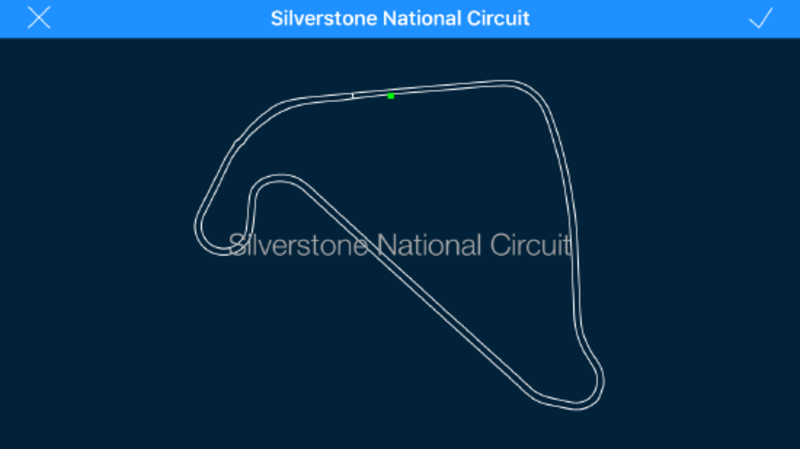
| You can see a preview of the circuit by pressing the info button to the right of each circuit. |  |
.png?revision=1)
Circuit Test – Custom Track
|
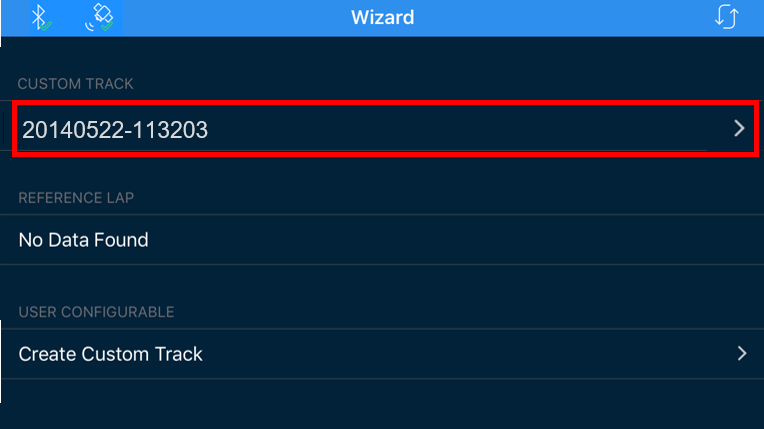
In addition to the circuits in the Racelogic database, you can also create custom tracks on the Laptimer app. To create a custom track, select the ‘Create Custom Track’ option under the ‘user configurable’ section of the main track selection page. First you need to add a start/finish point manually and the app will create a custom circuit map. Note: The vehicle speed must be above 18 km/h before you can set the start line. |
 |
|
As soon as you cross the start/finish line, the map image will be displayed in the right-hand side of the screen. The map will also be saved for later selection through the ‘custom track’ section. You can rename or delete custom maps by pressing the arrow button to the right of the track name. |
Screen displays
Laptime
| When you have selected a layout, the default screen will show the current position on the track and ‘waiting for s/f line’. As soon as you cross the start line for the first time, you will see the live time in the Live data section. |
 |
| When you cross the start line again, split points created by maximum speed will appear on the map image, and the delta-velocity will be shown at the top in a colour-coded bar graph. Swipe left or right to move between the different display options. |
Predictive
|
When you cross the start line for the first time, it will trigger a reference lap creation. When the start line is crossed again, the app will show you a live comparison time to the reference. At the end of each lap, the final lap time will be shown for the number of seconds set in the ‘Laptime display time’ section in the settings menu. Note: Lap times faster than the reference will automatically be used as the new reference lap. |
Results
|
The results screen shows you the achieved lap and split times during a session. To make it easy to compare, the fastest lap (the reference lap) is highlighted in white while split times are colour-coded. Red is slower and green is faster than the same sections in the reference lap. You can zoom in and out by pinching the screen over the results. |
 |
| Note: New laps with a different number of sectors are ignored. |
Speed
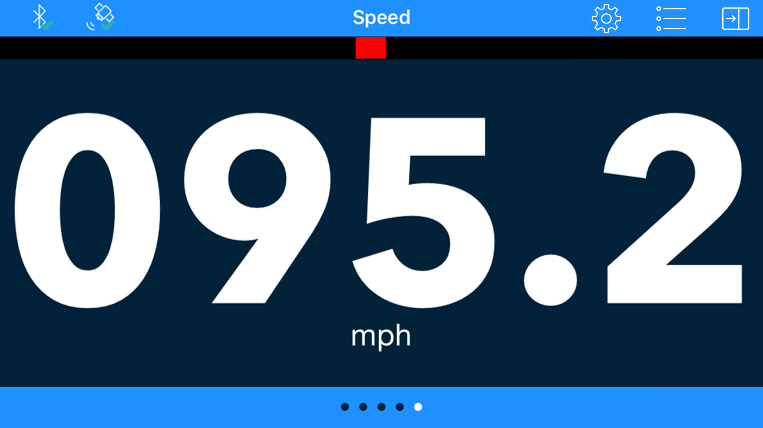
| By default, this screen shows a current speed readout. You can toggle this to a maximum speed readout by using the ‘Max speed’ button on the Functions page. |
 |
Functions

|
The Set S/F line lets you set a new start line. When this is confirmed, the app will default to the Laptime screen and the timing will start. Note: The minimum speed required to set a start point is 18 km/h. |
 |
| Pressing the Reset data button will clear all lap timing data from the app's memory, including any stored reference lap. |  |
| The Max speed lets you toggle the speed mode between showing the ‘real speed’ live value and a maximum speed achieved value. Pressing this button will move the screen view to speed mode. |  |
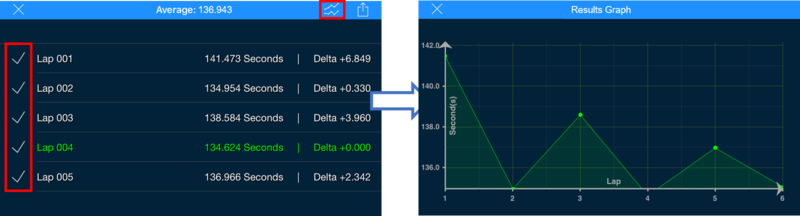
| The Results section displays all lap times achieved in a session. The fastest lap (the reference lap) is highlighted in green. You can select or deselect laps you want to see on a graph and to export. |  |
Results
Graph
| The Graph button at the top of the screen in the Results window lets you view selected results in a graph view. |  |
.png?revision=1) |
Exporting results
| The Export button at the top of the screen in the Results window lets you select results to email or stored locally on the device as a .csv file that you can download later via iTunes. |  |
.png?revision=1) E E |
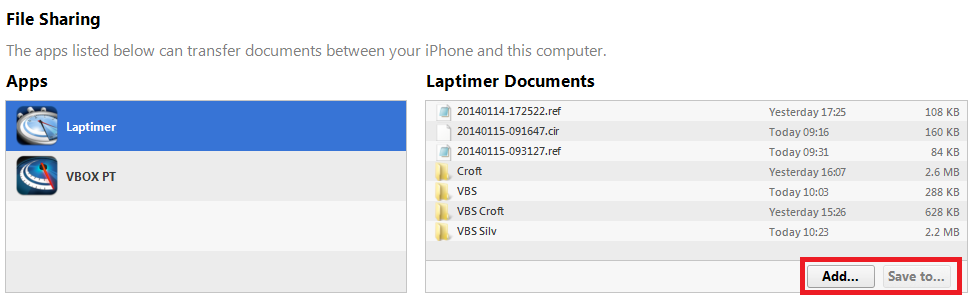
How to download via iTunesConnect your device to iTunes, click on the device and enter the 'Apps' tab. Click on the 'Laptimer' app and select the exported results file (.csv) you want. Click on 'Save to' and select a location on your computer to save and view the file. |
|
 |
Settings
| The Settings are accessible from in any display mode screen. |
 |
| Go back to main screen | .png?revision=1) |
| App version number | .png?revision=1) |
| Launch the external user guide on the RACELOGIC Support Centre | .png?revision=1) |
| Restore to the default settings | .png?revision=1) |
| Laptime display time | Changes the number of seconds lap times will show after finish is crossed |
| Speed bar max value | Changes the number of speed units taken into account for the Delta-V bar display |
| Gate width | Changes the width of the virtual start and split point gates |
| File name | Name VBO files to be saved in Application documents |
| Speed units | Choose to display speed values in km/h or mph |
| Save best reference | Save a reference lap for future use |
| Log VBO file | When this setting is enabled, the Laptimer app will save a .VBO file to the iOS files app on your iOS device. This file can then be opened in Circuit Tools for post-processing. |
| OEM feature | Specific function for an OEM customer. Can be activated with a suitable code. |
| One shot mode | Enable one shot mode to set a start line as soon as movement is detected |
| Lap time audio |
Lap time: There will be an audible announcement of the completed lap time when the star/finish line is crossed. Delta time: There will be an audible announcement of the delta time when the star/finish line is crossed. |
| Speed update | The Speed update setting lets you lower the update rate if the display is updating too quickly for your purpose. |
One shot mode
|
One shot mode is for use at sprint-style events.
When you have set a finish point, the app will instruct you to ‘stop at start line’. When the vehicle is stationary, the app will start counting down from 10. When the countdown has been completed, the next detected movement will trigger the lap timing. When you cross the finish line for the first time, the app will store a new custom circuit for future use. |