
Recording and Replaying CAN Data
LabSat 4 Record & Replay variants (LabSat 4 and LabSat 4 Core) can record and replay CAN data in addition to GNSS signal data.
|
Model Limitations LabSat 4 Lite models cannot record or replay CAN data. |
Digitized
Recording
- Connect the CAN1 High and CAN1 Low ports of the expansion connector to the appropriate wires/cable.
- Connect the LabSat 4 antenna (RLACS354) to the RF IN port.
- Connect the expansion connector to the Expansion port on the rear panel of LabSat 4.
- Power up LabSat 4 and navigate to the Digital menu in the Setup menu.
Menu -> Setup -> Digital -> CH1/CH2/CH3/CH4
- Select CAN1/CAN2.
- Exit the menu.
- Press the REC button on the front of LabSat 4 to begin the recording.
LabSat 4 will record all CAN data available on the connected CAN bus.

Replaying
- Connect from the CAN1 High and CAN1 Low ports of the expansion connector to the appropriate wires/port on the device under test.
- Connect the device under test to the RF OUT port on the rear panel on LabSat 4.
- Connect the expansion connector to the Expansion port on the rear panel on LabSat 4.
- Power up LabSat 4 and select the previously recorded CAN scenario file.
- Press the Play button on the front of LabSat 4 to begin the playback.
LabSat 4 will replay all CAN data originally recorded.

Log File
Log File mode is suitable for recorded ASCII text-based message data. As data is received, a new time stamped line is created in a log file which is has the same name as the GNSS signal data but with a .ser extension. Each byte of incoming data is added to the line until LabSat 4 recognises a carriage return [CR] or a line feed [LF] character. On receiving a CR, LF or both characters together, a new line is started in the text file with a new timestamp for the next received character.
| ASCII | Hex | Dec | Use |
|---|---|---|---|
| <CR> | 0x0d | 13 | Carriage return |
| <LF> | 0x0a | 16 | Line feed, end delimiter |
An example of an ASCII formatted message would be NMEA data from a GNSS module:
$GPGGA,123519,4807.038,N,01131.000,E,1,08,0.9,545.4,M,46.9,M,,*47
Because Log File data is received and processed by LabSat 4, you must configure the correct data or baud rate on LabSat 4. The standard rate for NMEA is 4800 bit/s, but it is not uncommon for systems to use other rates such as 9600 or 115,200 bit/s.
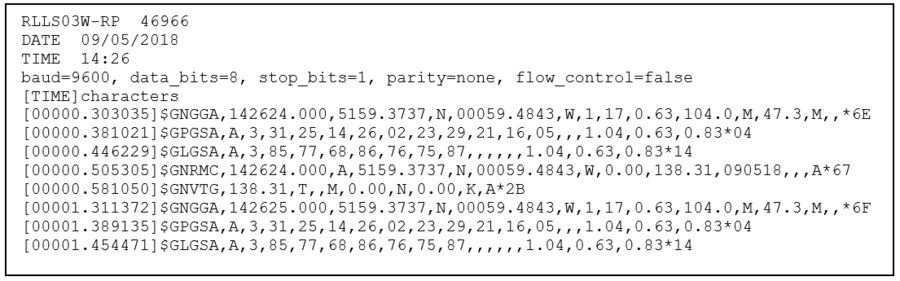
Example of a log file
The first section of the log file contains details such as the serial number of LabSat 4, the date and time of recording and the baud rate settings. After the [TIME] and character heading, the received data will appear along with the timestamp of the start of each line.
When you replay a recording with logged CAN data, LabSat 4 uses the timestamp in the file to replay each line at the corresponding time.
|
Note: There will be some variation in data output timing when compared to the record timing. |
Once a log file has been created, you can modify the log file by using a text editor application such as Notepad, to change the replayed output.
|
IMPORTANT Take care when you configure the CAN bus settings. Incorrect settings can lead to bus errors or can crash the bus. |
Recording
- Connect the CAN1 High and CAN1 Low ports of the expansion connector to the appropriate wires/cable.
- Connect the LabSat 4 antenna (RLACS354) to the RF IN port on the rear panel of LabSat 4.
- Power up LabSat 4 and navigate to the CAN section of the menu.
Menu -> Setup -> CAN -> Log File
- Press the OK button with Log File highlighted to enable it.
- Set the baud rate for both the CAN channels.
Menu -> Setup -> CAN -> CAN1/CAN2
- Exit the menu.
- Connect the expansion connector to the Expansion port on LabSat 4.
- Press the REC button on the front of LabSat 4 to start the recording.
LabSat 4 will record all CAN data available on the connected CAN bus.

Replaying
- Connect from the CAN1 High and CAN1 Low ports of the expansion connector to the appropriate wires/port on your device under test.
- Connect the device under test to the RF OUT port on the LabSat 4.
- Connect the expansion connector to the Expansion port on the rear panel of LabSat 4.
- Power up the LabSat 4 and navigate to the CAN menu in the Setup menu.
Menu -> Setup -> CAN -> REPLAY Log File
- Press the OK button with Replay Log file highlighted to enable it.
- Exit the menu.
- Highlight the relevant scenario file on the File Selection Screen.
- Press the Play button on the front of LabSat 4 to start the replay.
LabSat 4 will replay all CAN data originally recorded.
