
ADAS Test - Driver Status Monitoring, Short Distraction
The DSM: Short Distraction plugin for VBOX Test Suite gives you the ability to complete a Euro NCAP Driver Status Monitoring (DSM) / UNECE ADDW test.
Ribbon - Test Setup
The DSM: Short Distraction has a unique Test Setup ribbon, from which you can configure the test.

Test Section
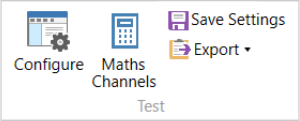
Configure
Maths Channel
Save Settings
Click on the Save Settings button to save the current test setup and add it to the Saved Settings area in the Add Test window.
The test will also be added to the list under the ADAS Test button on the Home tab for easy access.
Export
Data Column Section
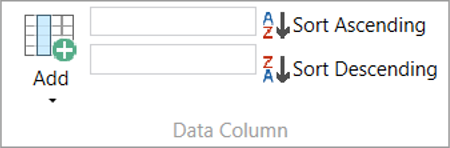
Add
Channel
When you select a column header in the Test Results area, the channel name will be displayed in the Channel box (the top box in the Data Column section). Some columns will have required channels and cannot be changed, but if you can change the channel, the Channel box will become a drop-down list with the available channels.
|
|
|

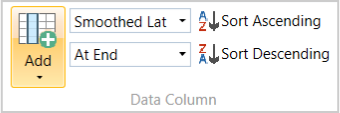
Result Condition
Sort Ascending
Sort Descending
Run Section

Select All
Deselect All
Session Section
Edit Data

Click on the Edit Data button to open the Session Data window and add various vehicle and test information, such as:
|
Vehicle
|
Wheels/Tyres
|
Test
|
Conditions
|
Help Section
Help

Click on Help to automatically open an Internet browser and load the relevant section of the User Guide on the Racelogic Support Centre.
| Note: This page will only be displayed if there is a valid internet connection. If there is no valid internet connection, a cached version of the relevant section (from the last software update) will be presented in PDF form. |
Test Settings
If you are creating a new test, the Settings window will open when you add the new test. This is where you can define the test parameters.
If you have already added a test and you have it open, you can click on the Configure button to open the Settings window to define or amend the test parameters.

Test Conditions
Start Trigger ChannelClick on the dropdown arrow and select the channel that will trigger the start of the test (or TGaze). A new test cannot be started until n seconds have elapsedTo avoid "false triggering", you can set the number of seconds you want to use as a buffer between tests. |
 |
Warning Channels
Audible Warning ChannelClick the dropdown arrow to select the channel for the Audible Warning signal. This can be a digital trigger or a CAN message from a VBOX Audio Sensor or a third-party sensor signal sent over CAN. Audible warning trigger valueSet the value for when the audible warning trigger is deemed active. Use the arrow buttons next to the value box to increase/decrease the value or type it directly into the box. Trigger whenThis setting is a ‘True if’ function that denotes when the audible trigger is activated. You can choose between the following:
|
 |
Validation
Seconds from t-Gaze to warning (t_Warn)Set the pass condition for the number of seconds from the t-Gaze to the warning depending on the protocol requirements. Use the arrow buttons next to the value box to increase/decrease the value or type it directly into the box. Test ends after seconds from t-GazeSet the pass condition for the seconds between the t-Gaze (Start Trigger) and the End of Test (EoT). Use the arrow buttons next to the value box to increase/decrease the value or type it directly into the box. |
 |
Advanced
Seconds from t-Gaze to warning (t_Warn)Set the pass condition for the number of seconds from the t-Gaze to the warning depending on the protocol requirements. Use the arrow buttons next to the value box to increase/decrease the value or type it directly into the box. Test ends after seconds from t-GazeSet the pass condition for the seconds between the t-Gaze (Start Trigger) and the End of Test (EoT). Use the arrow buttons next to the value box to increase/decrease the value or type it directly into the box. |
 |
Ribbon - Chart
The DSM: Short Distraction has a unique section on the Graph ribbon, in which you can find some plugin-specific tools.

Event

Add t-Away
Add a t-Away event to the test by clicking on the Add t-Away button with the cursor at the required location in the chart.
When you add a t-Away event you must add a corresponding t-Road event.
Add t-Road
Add a t-Road event to the test by clicking on the Add t-Road button with the cursor at the required location in the chart.
When you add a t-Road event you must add a corresponding t-Away event.
Selected Event
When you have added one or more events to the test, the selected event will be displayed. Click on the dropdown arrow next to the event name to see the available events in the test and select a different one.
Rename
You can rename the events in the test. Select the required event and click Rename.
Delete
You can delete events from the test. Select the required event and click Delete.
Plugin Tools

Back -4s
Click on the Back -4s button to move the cursor to 4 seconds before the start-of-test point in the chart.
Toggle Metronome
Click the Toggle Metronome button to enable a click track of 120 bpm. You can use this to keep time and trigger "look away" and "look back" actions required for the test.
Toggle Line Results
The short distraction test is made from multiple on/off triggers in a single test run, so we have added the extra functionality to toggle the line results. Click on the Toggle Line Results button to show or hide the individual line data from each trigger on/off activation. This is useful for post-processing of individual line results. For example, to assess where a test was out of bounds.
Test Results Area
The Test Results area displays instantaneous results from the current test session. In this area, you can review test-specific criteria such as the duration from test start to Visual / Audio warning, as well as the overall PASS/FAIL result.
You can review the live results and assign any edge cases to be considered for further review offline.
Every time you start a new test (via the START button on the dashboard), VBOX Test Suite will add a new tab to the Test Results area. This gives you the ability to switch between separate tests (for example, different Gaze locations). You can remove a session from the Test Results area by clicking the X icon on the tab.
Rename File
Edit Session Data
| Note: This data is purely optional and does not affect the test or the test results. |
Result Columns

The Test Results area has the following default columns:
| Run | Indicates which run number the results relate to, with run one being the first run completed. There is also a selection box that, when ticked, includes that run in the graph and into the Average/Max/Min/Standard Deviation calculations. Once selected, a coloured square will appear to indicate which colour this run is displayed as on the graph.
|
|
| Total Time (s) | Total duration of the test from the first Taway (manual trigger) to timeout. This is the test duration as defined in the test configuration, which is + 5 seconds. | |
| Road Time (s) | The cumulative time in seconds that the manual trigger is inactive during the test. | |
| Away Time (s) | The cumulative time in seconds that the manual trigger is inactive during the test. | |
| Max. Road time (s) | The maximum recorded isolated occurrence of ‘Trigger OFF’ time. | |
| Max. Away time (s) | The maximum recorded isolated occurrence of ‘Trigger ON’ time. | |
| Inactivity Timeout | Yes/No result if the trigger is not activated for > 5 seconds | |
| Audible (s) | The time in seconds from the test start to the audible warning, if one is given. If no audible warning is given, then 0.00 is returned. | |
| Visual (s) | The time in seconds from the test start to the visual warning, if one is given. If no audible warning is given, then 0.00 is returned. | |
| Pass/Fail | Overall pass/fail result of the run based on the validation criteria given in the test configuration. |