
R117 Test with Single MIM Setup
Equipment List
Required
- 1 x VB4 - VBOX 4 (100 Hz GNSS Data Logger)
- 1 x ACS356 - GNSS antenna
- 1 x RLCAB080-4 - GNSS antenna cable
- 1 x RLVBMIM01 - Mini Input Module
- 2 x RLRTMXB2 - Telemetry Radio
- 2 x RLACS218 - Magnetic Mount Radio Antenna
- 1 x RLCAB005 - PWR/CAN/SER cable
- 2 x Standard-Appropriate Analogue Microphone - We are using B&K SLM 2250 for this guide.
- 1 x PC or Tablet - For configuration and testing
- 1 x RLCAB001 - Serial PC Cable
- 1 x RLACS189 - Laser Light Barrier Kit (*Alternatively you can use an RTK solution and start lines)
- 1 x RLCAB010LE - Cigar Plug Power Cable
- 1 x RLACS302 - 3 Ah Li-Ion Battery pack (*Alternatively you can use other Racelogic battery packs, such as RLACS333-L or RLACS112-L)
- 2 x RLCAB143 - B&K 2250 SLM DC output Cable to Mini Input Module
- 1 x RLCAB218 - PWR/CAN/SER cable
- 1 x RLCAB042 - USB 'A' to USB 'B' cable
- 1 x Thermocouple - Temperature sensor for track temperature
*RTK Solution
RPM Input
The R117 standard requires an RPM input from the vehicle to the VBOX 4.
You can use one of multiple methods to achieve this:
- Vehicle CAN bus connection
You can see a list of compatible cables for CAN Connection here. - Vehicle CAN FD connection
You can see a list of compatible cables for CAN Connection here.
- Third-party External RPM sensor via Analogue Input connector
Optional
- Weather Station
- Vehicle CAN
Capture additional vehicle data.
- USB-to-Serial Adapter
To connect a MIM to a computer that does not have a Serial port.
Firmware
Sound Level Meter Setup
Mini Input Module Setup
- Connect the RLCAB001 cable from the DATA1 port to the PC/Tablet (you may need to use a serial-to-USB adapter) and power up the MIM using a suitable 12 V power source.
- Install the latest version of VBOX Setup on your PC/Tablet and run the software.
- Select the COM port for the MIM and click Connect.
- When the computer has connected to the MIM, open the Settings menu.
- Make sure that the Mode is set to Racelogic Polled.
- Set the Operation mode:
With Weather Station
- Select Sound Level Meter(s) and Weather Station only if you are connecting a weather station.
Without Weather Station
- Select Sound Level Meter(s) only if you are not connecting a weather station.
- Click the Write to unit button.

Hardware Connections
- ►Roadside
-
Power
- Connect the Battery Pack to the female connector on the RLCAB218.
- Connect the male Lemo connector on the other end of RLCAB218 to the DATA 1 port on the MIM.
Radio
- Connect the remaining male Lemo connector on the RLCAB218 to the radio.
- Connect the radio antenna to the SMA port on the radio.
Sound Level Meter 1 (B&K 2250)
- Connect one RLCAB143 cable to the Output socket on SLM 1.
- Connect the red wire on RLCAB143 to the AN1 pin on the MIM.
- Connect the black wire on RLCAB143 to the AGND pin on the MIM.
Sound Level Meter 2 (B&K 2250)
- Connect one RLCAB143 cable to the Output socket on SLM 2.
- Connect the red wire on RLCAB143 to the AN2 pin on the MIM.
- Connect the black wire on RLCAB143 to the AGND pin on the MIM.
Thermocouple (Optional)
- Connect the thermocouple you want to use to the TC1 or TC2 port on the MIM.
Weather Station (Optional)
- Connect the Lemo connector on the RLCAB032 to the DATA 2 port on the MIM.
- Connect the serial connectors from RLCAB032 and the Davis Vantage Pro 2 weather station console together with an RS232 male-male gender changer.

- ►Vehicle-Mounted With Laser Light Barrier
-
Power
- Connect the Power Cable to the PWR port on the VBOX 4 unit and the power port on the vehicle.
PC/Tablet
- Connect the tablet/PC to VBOX 4 USB port with the RLCAB042 USB A to USB B cable.
GNSS Antenna
- Connect the RLACS356 antenna to the primary antenna port (A) on the VBOX 4 unit with an RLCAB080-4 cable.
Radio
- Connect the radio to the SERIAL port on the VBOX 4 unit with an RLCAB005 cable.
- Connect the radio antenna to the SMA port on the radio.
Laser Light Barrier
- Connect the RLCAB143 to the D IN port on the VBOX 4 unit.

- ►Vehicle-Mounted With RTK for Start Lines
-
Satel Radio
Power
- Connect the Power Cable to the PWR port on the VBOX 4 unit and the power port on the vehicle.
PC/Tablet
- Connect the tablet/PC to VBOX 4 USB port with the RLCAB042 USB A to USB B cable.
GNSS Antenna
- Connect the RLACS356 antenna to the primary antenna port (A) on the VBOX 4 unit with an RLCAB080-4 cable.
Radio
- Connect the radio to the SERIAL port on the VBOX 4 unit with an RLCAB005 cable.
- Connect the radio antenna to the SMA port on the radio.
Satel Radio
- Connect the radio antenna to the Satel radio.
- Connect the radio to the D IN port on the VBOX 4 unit with the RLCAB096L cable.

Racelogic DGPS Radio
Power
- Connect the Power Cable to the PWR port on the VBOX 4 unit and the power port on the vehicle.
PC/Tablet
- Connect the tablet/PC to VBOX 4 USB port with the RLCAB042 USB A to USB B cable.
GNSS Antenna
- Connect the RLACS356 antenna to the primary antenna port (A) on the VBOX 4 unit with an RLCAB080-4 cable.
Radio
- Connect the radio to the SERIAL port on the VBOX 4 unit with an RLCAB005 cable.
- Connect the radio antenna to the SMA port on the radio.
DGPS Radio
- Connect the radio antenna to the SMA port on the DGPS radio.
- Connect the radio to the DGPS port on VBOX 4 with an RLCAB005 cable.

- ►CAN Input - RPM
-
If you are using CAN or CAN FD for the RPM input.
Use a suitable cable to connect the Vehicle CAN bus to the relevant CAN/CANFD 1/CANFD 2 port on the VBOX 4 unit.
You can read more about the different ports and inputs here.
CAN port

CAN FD port

VBOX 4 Setup
Input Channels
- Open the Channel Setup menu.

- Click on the relevant section heading for the RPM input you are using.
CAN Input - You can find more information about how to configure CAN inputs on VBOX 4 here.
CAN FD 1 / CAN FD 2 - You can find more information about how to configure CAN FD inputs on VBOX 4 here.
Internal A/D - You can find more information about how to configure analogue inputs on VBOX 4 here.
Other - we recommend that you go to the VBOX 4 User Guide to find more information about input configuration. - Make sure that the CAN port settings are as required depending on the vehicle.
Note: If you change the CAN termination, you must power cycle the VBOX 4 unit after writing the configuration to the unit.
MIM Input
- Click on a section heading for a MIM input to expand it and view the channels and signals.
The MIM channels will automatically be logged. - Click on a channel to view the channel settings and make any required edits to the name, units, scale and offset.
- Make sure that you adjust the scale (to convert volts to dB) and offset for the microphones, according to the manufacturer's calibration information.
 |
RTK Solution
Must be configured if you are using a DGPS radio and Base station to set start lines to trigger test start.
- Open the GNSS menu.
- Select the RTK Mode for your RTK solution.
- Set the Baud Rate for your RTK solution.

Complete the Configuration
VBOX Test Suite
When the hardware has been configured, you can run VBOX Test Suite and configure the settings for the VBOX Test Suite R117 test plugin.
- Run VBOX Test Suite.
- Click on the Online button to go to online mode for the test.
If you are using a Laser Light Barrier to trigger the test, you can jump to the Test Configuration section below.
If you are using an RTK solution to trigger the test, you must configure the Start Line(s) in Test Suite while in Online mode.
Setting Start Lines in Online Mode
- Make sure that Test Suite is connected to the VBOX in Online mode.
- Drive to the point on the track where you want to add the line.
- Make sure that the GNSS antenna is in line with the start line offset, which is a set distance to the Start Line (AA’).
- Click the Add Start Line button on the Test Setup tab.
- Drive forward in a straight line so that Test Suite can record the driving direction from the line.
- If you are using both directions of the test track, you must repeat the procedure in the opposite direction too.
After you have set start lines, we recommend that you save the test settings. This will allow you to repeatedly recall these start lines without having to manually set them every time.
Test Configuration
Add a Test
- Click the Add button in the Test section on the Home tab.
- Select the Pass-By Noise category and the R117 test.
- Select New Test.
- Click OK to add the selected test.

Configure a Test
When you are creating a new test, the Settings window will open when you add the new test. This is where you can define the test parameters.
When you have a test open, you can click on the Configure button on the Test Setup ribbon to open the Settings window again to define or amend the test parameters.
Use the arrow buttons on the right-hand side of each parameter section to view/hide the settings.

New Test
When you add a new test, the test settings window will automatically open when the test opens.
- Set the start trigger in the Start On setting:
With Laser Light Barrier:
Select the channel Trigger in the dropdown menu.
When you use a trigger as the start condition, the test will ignore any other trigger activations during the duration of the test.
With RTK Solution:
Note: To be able to select a Start Line for this setting, you must first configure the start line(s) as described here. Select the relevant channel in the dropdown menu.
As the test can be conducted in both directions, you can set 1 or 2 Start On lines in this setting.
- Set the start-line offset.
- If you are only testing in one direction, tick the Allow Single Direction Testing option.
- Select the relevant micophone channel(s) for your test.
Note: You must specify channels for Microphone 1 before you can run the test.
- If you are using a weather station, specify the relevant Channels and Max/Min temperatures for the Air Temperature and Wind Speed.
- If you are using a temperature sensor to measure the track temperature, specify the relevant channel and Max/Min temperatures for the Test Surface Temperature.
- Specify the maximum sound pressure level for the Noise Threshold.
- Click OK.
Session Data
Edit Data

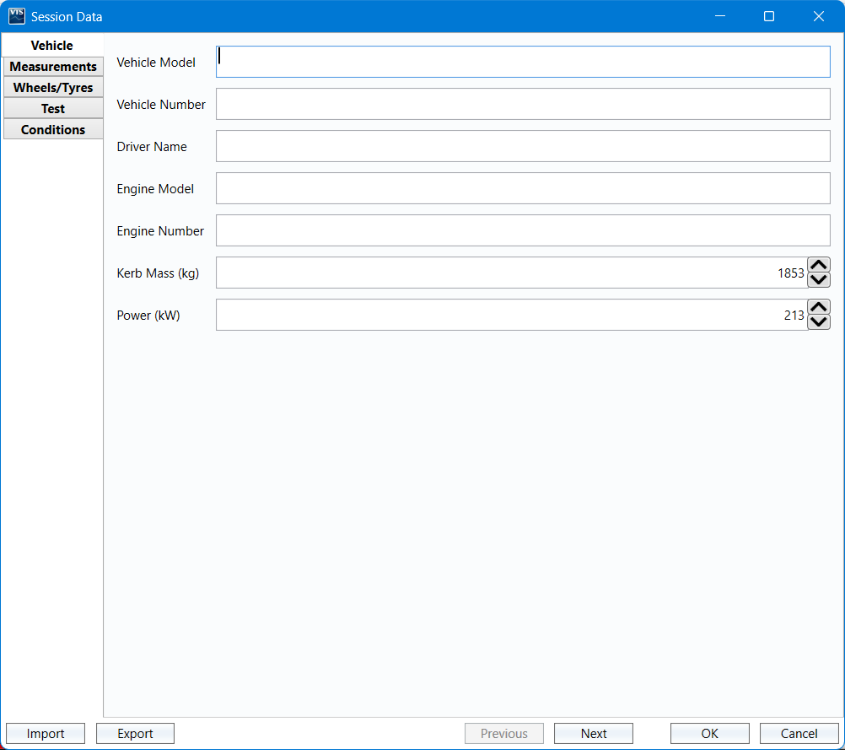
Click on the Edit Data button to open the Session Data window and add various vehicle and test information, such as:
|
Vehicle
|
Measurements*
|
Wheels/Tyres
|
Test
|
Conditions
|
*Measurements
The vehicle offsets measurements are mandatory. The other data is optional and will not affect the test or test result.
Enter the front and rear vehicle offsets from the laser light trigger, or GNSS antenna if using GPS start/finish lines.
The start of the test is deemed to be when the front of the vehicle passes the start line and the end is when the rear of the vehicle passes the finish line.
Tyre Class
This decides which speed the test should be conducted at as well as the temperature coefficient.
C1 is the default class.
The Tyre Class will affect the outcome of the test. If this is changed, the results and the report information will be updated.
| Note: Although this parameter is located under the Front Tyres/Wheels area in the Session Data, it will apply to all wheels under tests, including the rear wheels. |
Save and Load Session Data
Running a Test
|
IMPORTANT Before you start the test, you must have entered or loaded the Vehicle Offset Measurements. |
Refresh Channel Names
When you are conducting a Pass-By Noise test, we recommend that you disable Refresh Channel Names.
This will make VBOX Test Suite remember the channel names from the last online session. When you connect to the VBOX, Test Suite will include any CAN channels from modules that are no longer connected to the VBOX as unnamed channels.
If the number of CAN channels in the serial stream for the new VBOX connection matches the number of CAN channels in the previous online session, you will be prompted to set the channel names from the previous connection.
This is useful in situations where you would like to view the channels from the Mini Input Module (MIM) that you previously connected to the VBOX for configuration and that is now connected to a sound level meter on the roadside, communicating with the VBOX via radio.
Starting, Stopping and Resetting a Test
In Online mode. Test Suite will display test operation buttons on the Dashboard.

Click the Start button to start the test. This will add a tab to the Test Results area ready to be populated with results once the start and end conditions of the test have been met. When you click the Start button, it will change to a Pause button that can pause the test. When you pause a test, the button will change to a Resume button that can resume the test.
Click the Stop button to complete a test. This will stop all open tests and prevent future results from being added to that results tab.
Press the Start button to open up a new results tab.
If, for any reason, a mistake has been made during the test, you can restart the test by pressing the Reset button.
Dashboard
Along with the usual dashboard functionality, the R117 Pass-By Noise test plugin has some extra options.
Click Add Gauge in the Dashboard tab on the ribbon to see a dropdown list where you can select a test parameter you wish to display, such as:
- Direction
- Time (s)
- Run
- Start Speed (km/h)
- Mic Speed (km/h)
- End Speed (km/h)
- Pass?
- OK Runs
- Run Status
- Run Time (s)
- Run Distance (m)
The available test gauges will depend on the configuration.
The software will add a gauge to the dashboard.

All the Result Column parameters will also be available as gauges.
Gauges that display the result of a test, such as an average or maximum value, will have a result icon to the left of the gauge name to indicate that it is either a result of the previous run if you are viewing live data, or the currently selected run if you are viewing a saved file.
Distance To End
When you have selected Distance as the End Condition in the Settings, you can add a Distance to end (m) gauge to the dashboard. This will display a countdown (in distance) once the start condition has been detected.

Test Results
The test results area is the area that displays all of the results from the current test. In this area, you can include/exclude results from the chart area, display the average/max/min values and also easily identify any runs that have not met the pass criteria.
Every time you start a new test (via the START button on the dashboard), or load a new file, a new tab will be added to the Test Results area. This gives you the ability to switch between separate tests or files and compare runs from each. You can remove a session from the results area by clicking on the X on the session tab.

Edit Session Data
Click on the Edit Data button next to the session name in the Test Results area or in the Test Setup tab on the ribbon, to add and amend vehicle and test information in the Session Data.
Creating a Report
Click on the Report button in the Test section on the Test Setup tab to see a preview of the report from the session.
The Report window will present options to print or export the report.
|
|
Click the Print Layout or Page Setup buttons to adjust the report before you print it. |
 |
Click the Print button to print the report as presented in the preview. |
 |
Click the Export button to export the report to an Excel, PDF or Word file. |


Alternatively, you can right-click in the Test Results area and select Export to either export the results to a .CSV file or export the results to a Text file.
The report will contain the entered session data and test results.
You can read more about VBOX Test Suite and its features and functionalities in the VBOX Test Suite User Guide.