
The intuitive toolbar in Circuit Tools 3 provides immediate access to essential software functions, ensuring key features remain discoverable throughout your analysis.

When you click on the File button, the File dropdown menu will appear. You can find more information about each of the menu options below:
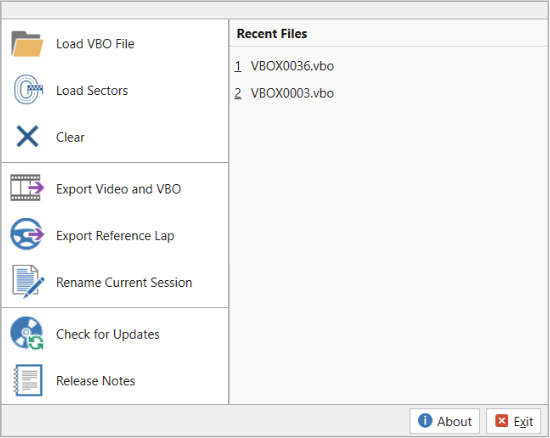
Load VBO File
Click the Load VBO File option to open a .VBO file in Circuit Tools 3. The Open VBOX File dialogue will open, where you can navigate to the relevant directory for the required file(s) and select the relevant file(s) for your analysis before you click Open. Alternatively, you can drag and drop files into the Circuit Tools 3 window to load them.

Click the Load VBO File option to open a .VBO file in Circuit Tools 3. The Open VBOX File dialogue will open, where you can navigate to the relevant directory for the required file(s) and select the relevant file(s) for your analysis before you click Open. Alternatively, you can drag and drop files into the Circuit Tools 3 window to load them.

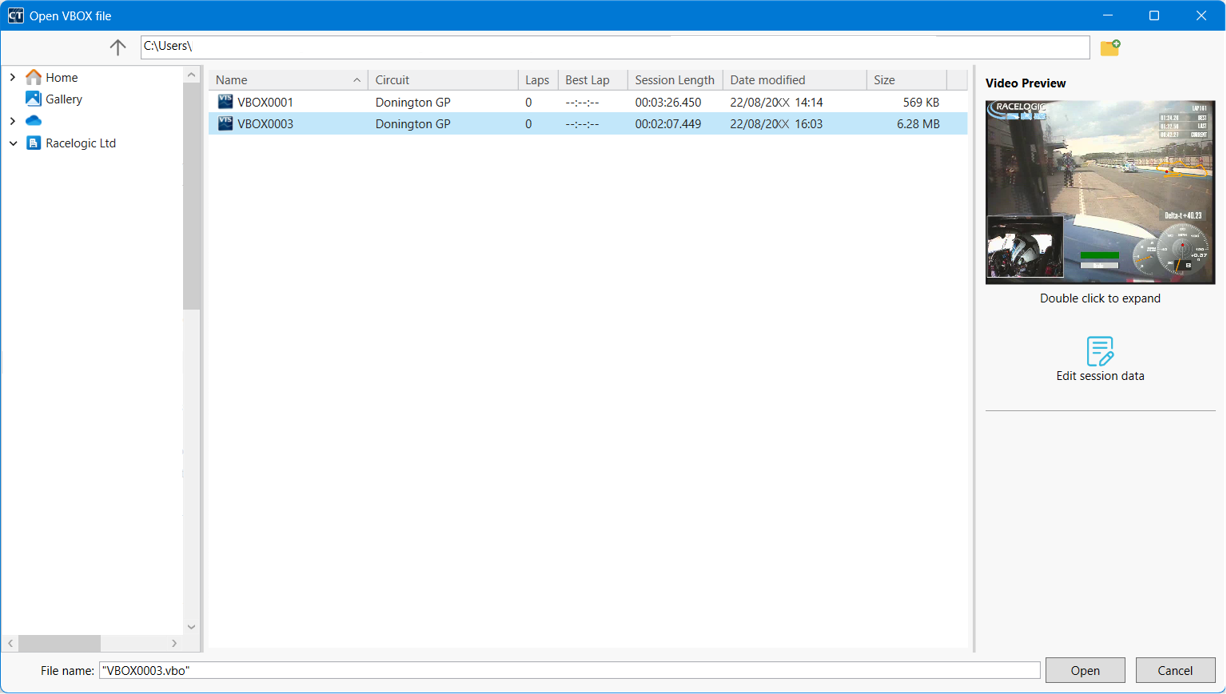
When the files are opened, Circuit Tools 3 will use the GPS position in the file to automatically detect the circuit and load it from our Track Database of more than 800 tracks worldwide. If there are multiple track layouts, Circuit Tools 3 will use the length of a lap to select the correct version. You can change the track layout manually later.
NOTE
Circuit Tools 3 cannot open files from more than one track location at the same time.
In addition to the well-known directory format, the Dialogue has a pane on the right-hand side with some extra information and options.
Video Preview
When you select a .VBO file, the linked video (if existing) will be previewed in the pane on the right-hand side. If you need to view the prview in more detail, you can double-click on the video preview image to expand it.
Edit Session Data
Click Edit Session Data to open the Session Information pop-up. This is where you can add session information, such as:
- Weather
- Circuit Name
- Driver Name
- Vehicle
- Notes
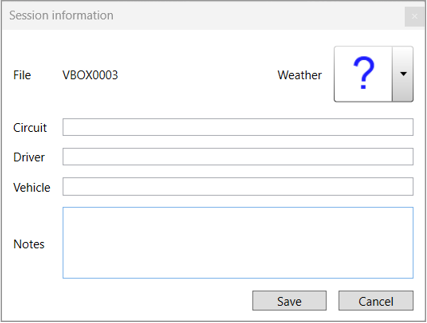
Click on the Weather dropdown arrow to open the weather menu and select the icon that best describes the weather conditions when the file was logged .

Transfer Wizard
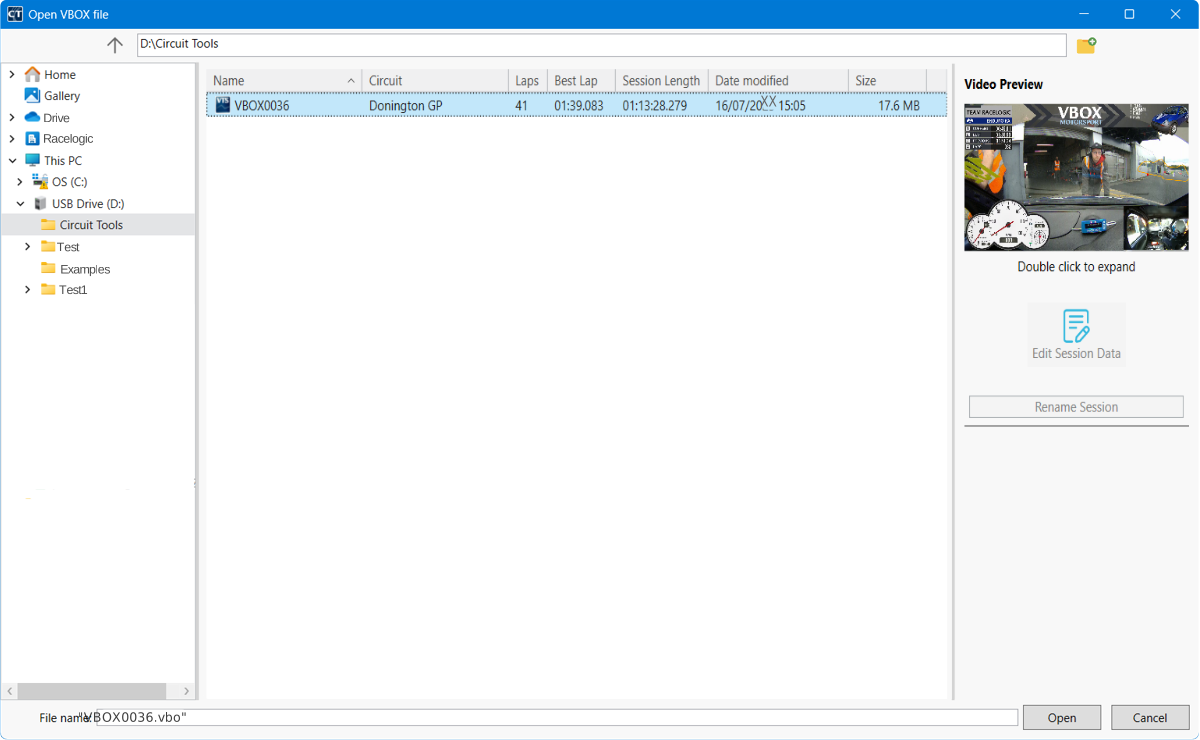
When Circuit Tools 3 discovers an SD card, the Open VBOX file dialogue will present a Transfer Wizard for transferring files between the PC and the SD card.
Directory for new files
This is the directory where new files will be saved.
Enter the directory path or click the ... button to open File Explorer and navigate to the required directory.
Today's folder
This is the folder where all new files will be saved.
By default, this folder will be named that day's date.
Session for new files
This is the name for new session files that are saved.
By default, these files will be named Session_xx, where [xx] is the next available consecutive number.
Move
Copy all .VBO files from the media directory on the SD card to your PC, and then delete all files from the media directory on the SD card.
Copy
Copy all files from the media directory on the SD card and leave the original files on the SD card.
Load Sectors
Click the Load Sectors option to open a user-defined sector file in Circuit Tools 3.

Click the Load Sectors option to open a user-defined sector file in Circuit Tools 3.

You can load the following file types:
- .SPL
- .DSF
- .VBO
NOTE
To view the sectors from the loaded file in Circuit Tools 3, you must change the sector method to User defined in the Track Map Options (See more under Track below).
Clear
Click the Clear option to remove all sessions (files) loaded into Circuit Tools 3.

Click the Clear option to remove all sessions (files) loaded into Circuit Tools 3.

Export Video and VBO
Click the Export Video and VBO option to export synchronised .VBO and video files for each of the selected laps from the current session.

Click the Export Video and VBO option to export synchronised .VBO and video files for each of the selected laps from the current session.

NOTE
The files will be exported to the directory you loaded the current session from. The progress bar on the Toolbar will provide feedback on the export operation.
For example, if you saved the .VBO file to your Desktop and loaded it into Circuit Tools 3, selected relevant laps in the session and clicked File → Export Video and VBO, the exported files will also be saved to the Desktop.
Export Reference Lap
Click the Export Reference Lap option to export the current reference lap as a .REF file that can be loaded into a VBOX LapTimer.
This will open the Save As menu, where you can navigate to the required directory. Click Save to confirm.

Click the Export Reference Lap option to export the current reference lap as a .REF file that can be loaded into a VBOX LapTimer.
This will open the Save As menu, where you can navigate to the required directory. Click Save to confirm.

Rename Current Session
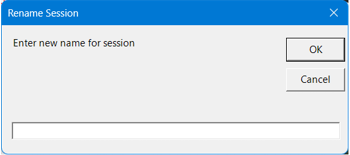
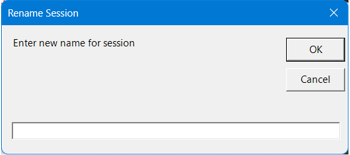
Click the Rename Current Session option to open the Rename Session pop-up, where you can enter a new name for the relevant session. Click OK to confirm the new name or Cancel to close the pop-up without changing the session name.

Click the Rename Current Session option to open the Rename Session pop-up, where you can enter a new name for the relevant session. Click OK to confirm the new name or Cancel to close the pop-up without changing the session name.

Check for Updates
Click the Check for Updates option to make Circuit Tools 3 check for uninstalled updates. The software will display a pop-up stating its status, with the option to enable automatic updates by ticking the Check automatically box. By enabling automatic updates, Circuit Tools 3 will notify you when a new version of the software is available to download.

Click the Check for Updates option to make Circuit Tools 3 check for uninstalled updates. The software will display a pop-up stating its status, with the option to enable automatic updates by ticking the Check automatically box. By enabling automatic updates, Circuit Tools 3 will notify you when a new version of the software is available to download.

Release Notes
Click the Release Notes option to open the release notes for Circuit Tools 3 in Racelogic's online Support Centre.

Click the Release Notes option to open the release notes for Circuit Tools 3 in Racelogic's online Support Centre.

Recent Files
The Recent Files area on the right-hand side of the File menu will contain a list of the 9 files that were loaded into the software last.
About
Click the About button to see the installed version of Circuit Tools 3, along with the installed version of the Circuit Database and the Lib VLC.

Click the About button to see the installed version of Circuit Tools 3, along with the installed version of the Circuit Database and the Lib VLC.

Click the Exit button to close Circuit Tools 3.

Click the Exit button to close Circuit Tools 3.



Click the View button to open the dropdown menu with the options for the screen layout.
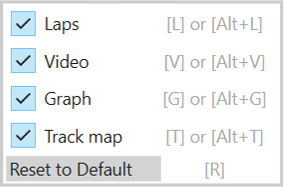
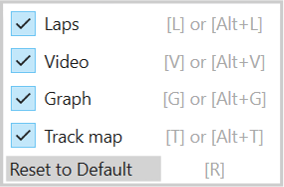
Tick/untick the options to add/remove the pane(s) from the screen.
The following panes are available:
- Laps
- Video
- Graph
- Track Map
The screen layout will update automatically when you tick/untick an option.
Tick/untick the options to add/remove the pane(s) from the screen.
The following panes are available:
- Laps
- Video
- Graph
- Track Map
The screen layout will update automatically when you tick/untick an option.
Reset to Default
Click the Reset to Default button to set the screen layout to the default layout:
- All view panes are displayed.
- Horizontal and vertical separators are set to their default positions.

Select the data you want to display in the Laps Pane.
The data can either be displayed in laps with sectors on the Graph or in sessions with laps on the graph.
Laps
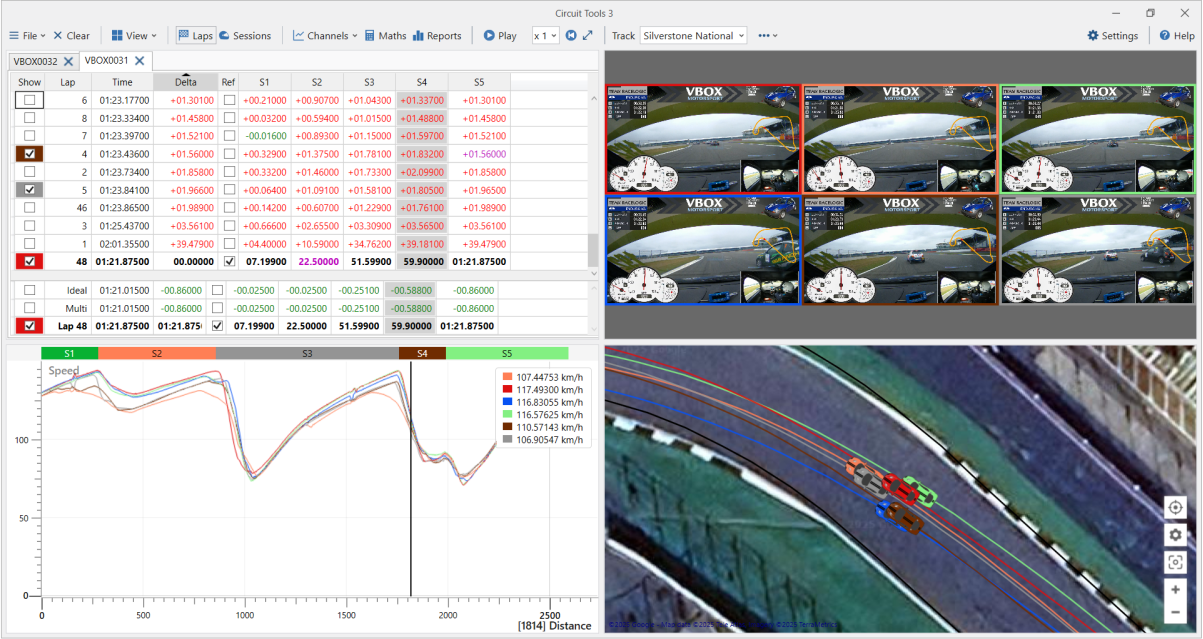
Click the Laps button to view the selected laps and split times in the panes on the screen.
When you view the file in laps, you can select the relevant laps that you want to compare in the Laps Pane. The Graph Pane will display each selected lap on graphs split into sectors. Each selected lap has a video in the Video Pane and a trace in the Track Map Pane.
Sessions
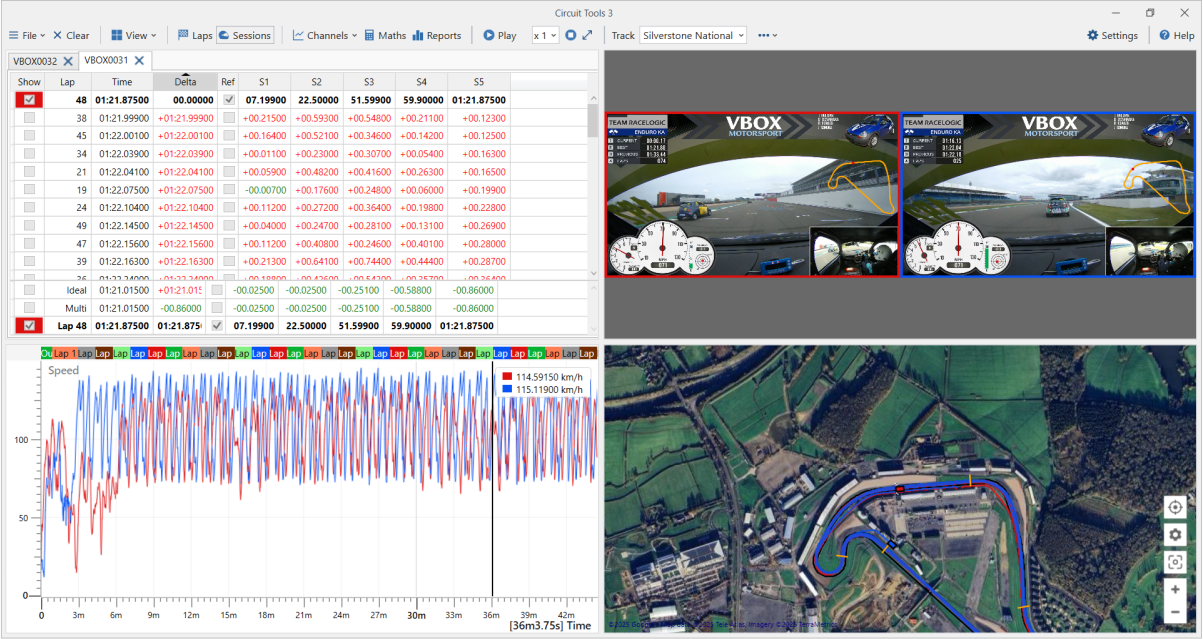
Click the Sessions button to display the session(s) in the panes on the screen.
When you view the full session, you cannot select laps that you want to compare in the Laps Pane. The Graph Pane will display the session on the graphs split into laps. Each session has one video frame in the Video Pane and one trace in the Track Map Pane.

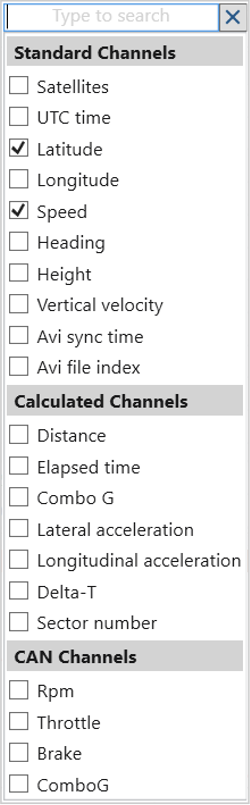
Click the Channels button to open the dropdown list and select the channels you want to view in the Graph. The available channels will depend on the channels logged in the loaded file.
This image is an example of what the Channels dropdown could look like:
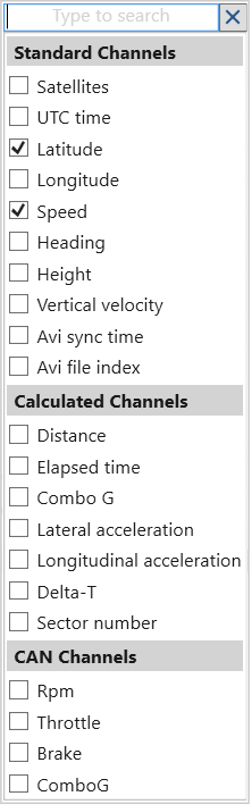
Click the Channels button to open the dropdown list and select the channels you want to view in the Graph. The available channels will depend on the channels logged in the loaded file.
This image is an example of what the Channels dropdown could look like:
NOTE
If you select CAN Channels and close the software, those same CAN channels will automatically be selected if you re-launch the software and load the same file.

Click the Maths button to open the Maths Channels Setup window.
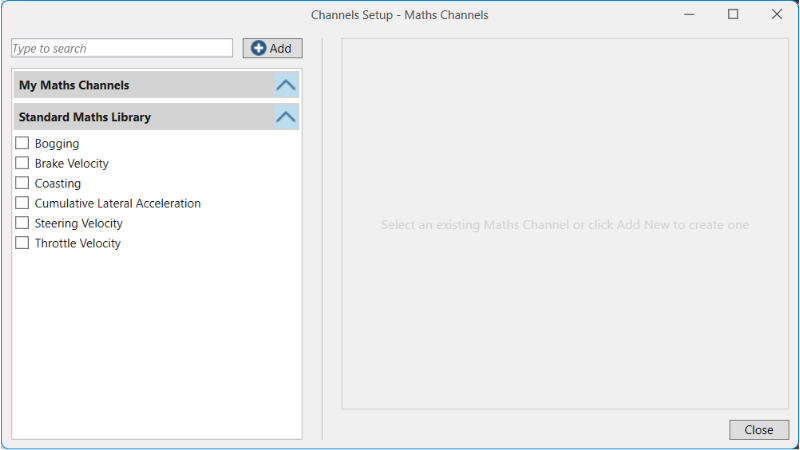
You can either select pre-configured maths channels from the Standard Maths Library or create your own maths channels.
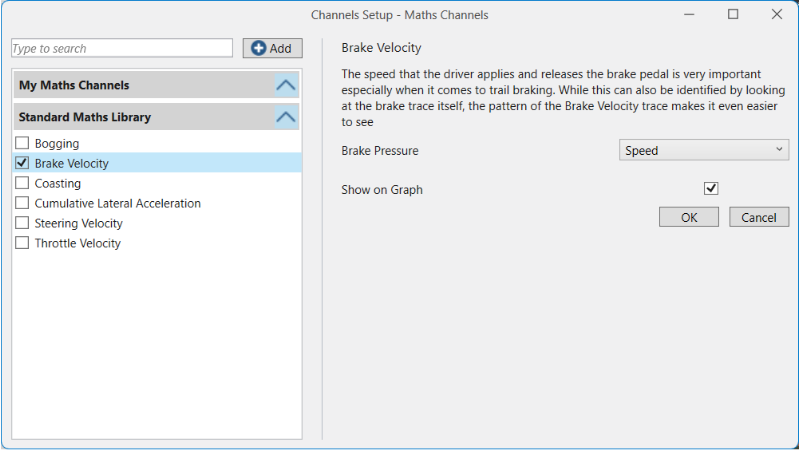
Standard Maths Library
Select a maths channel from the library to see the details in the pane on the right-hand side. These details will contain the name and description along with any relevant options that need to be configured for your file and the option to add the maths channel to the graph.
Create New
Click the Add button to open the configuration pane for the new maths channel.
The channel will automatically be named "MathsX", where X is the next consecutive number after the highest number of existing channels.
You can change the name in the configuration pane.
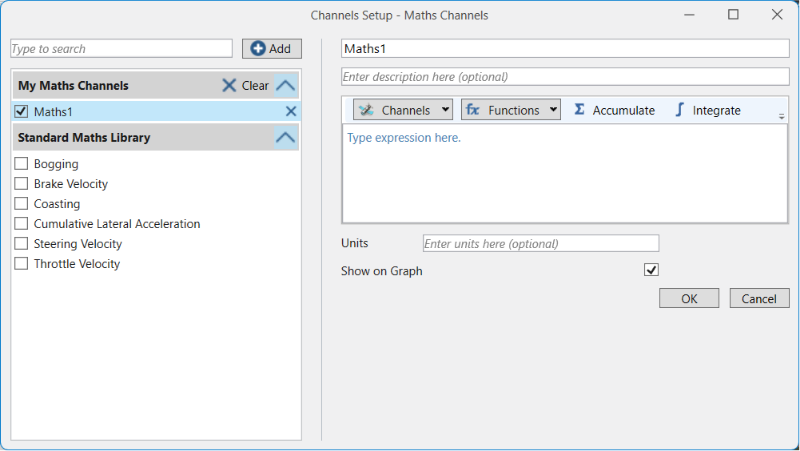
The configuration pane contains a description field, an expression field, a unit field and a tick box to add the maths channel to the graph while in the Channel Setup.
Expression Elements
Channels
The standard channels are the GNSS channels that are captured by default. These can always be accessed. The additional channels are any configured CAN channels or any existing maths channels.
Click on the down arrow for a channel to see the extra functions that can be applied, including Current, Previous, Rate of change, Integration and Accumulative.
Functions
You can see a list of the supported functions below. Constants of G and PI are also supported.
| Function | Description |
|---|---|
| + | Add |
| - | Subtract |
| * | Multiply |
| / | Divide |
| % | Remainder |
| << | Bitwise left shift, the most-significant bit is lost, and a 0 bit is inserted on the other end, multiplies a binary number by 2 |
| >> | Bitwise right shift, the least-significant bit is lost, and a 0 bit is inserted on the other end, divides positive numbers by 2 |
| & | Bitwise AND, whenever the value of a bit in both the variables is 1, then the result will be 1 or else 0 |
| | | Bitwise OR, whenever the value of a bit in one of the variables is 1, then the result will be 1 or else 0 |
| ^ | Bitwise XOR, whenever only one variable holds the value 1, then the result is 0 else 0 will be the result |
| == | Equality, checks whether equal, returns 1 for true or 0 for false |
| != | Non-equality, checks whether unequal, returns 1 for true or 0 for false |
| <= | Less than or equal, returns 1 for true or 0 for false |
| >= | Greater than or equal, returns 1 for true or 0 for false |
| < | Less than, returns 1 for true or 0 for false |
| > | Greater than, returns 1 for true or 0 for false |
| Abs(x) | Absolute |
| Acos(x) | Arc cosine, returns degrees |
| Asin(x) | Arc sine, returns degrees |
| Atan(x) | Arc tangent, returns degrees |
| Ceiling(x) | Round up to the nearest integer |
| Cos(x) | Cosine, returns degrees |
| Cosh(x) | Hyperbolic cosine, returns degrees |
| Deg(x) | Convert radians to degrees |
| Exp(x) | Exponential function |
| Floor(x) | Round down |
| Heaviside(x) | Returns 0 if x less than 0, otherwise returns 1 |
| If(x,y,z) | If else condition. Returns y if condition x is true, otherwise will return z |
| Integer(x) | Integer part of x |
| Ln(x) | Natural log of x |
| Log(x,y) | Log of x and y |
| Log10(x) | Logarithm to the base 10 |
| Max(a,b,c,...) | Maximum of all |
| Min(a,b,c,...) | Minimum of all |
| Modf(x) | Fraction part of x |
| Pow(x,y) | Raise x to the power of y |
| Rad(x) | Convert degrees to radians |
| Round(x,y) | Round the number x to y decimal places |
| Sin(x) | Sine, returns degrees |
| Sinh(x) | Hyperbolic sine, returns degrees |
| Sqrt(x) | Square root |
| Tan(x) | Tangent, returns degrees |
| Tanh(x) | Hyperbolic tangent, returns degrees |
Edit Existing Channel
You can edit already created maths channels in the Channels Setup window. Select the channel you want to edit, update the name, description, expression or units as required, and click OK to save the updated maths channel.
If the maths channel is already displayed in the Graph, it will automatically update when you click the OK button to save the changes.

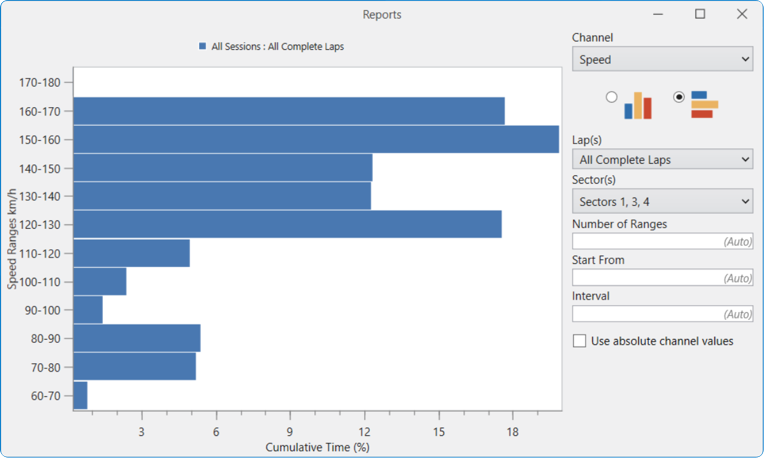
Click on the Reports button to open the Reports Dialogue.
Click on the histogram to display/hide the labels on the graph.
Channel
Click on the Channel dropdown to open the dropdown list and select the channel you want to view in the histogram.
Orientation
Select the orientation for the histogram:
- Vertical
- Horizontal
Lap(s)
Click on the Lap(s) dropdown to open the dropdown list and select the laps you want to compare in the histogram.
Sector(s)
Click on the Sector(s) dropdown to open the dropdown list and select the relevant sector(s) (if available).
Number of Ranges
Circuit Tools 3 will automatically apply the most suitable number of ranges, but you can enter the required number of ranges in this field to apply them instead.
Start From
Circuit Tools 3 will automatically apply the most suitable number to start from, but you can enter the required start number in the field to apply it instead.
Interval
Circuit Tools 3 will automatically apply the most suitable interval number, but you can enter the required interval in the field to apply it instead.
Use absolute channel values
Tick the Use absolute channel values box to apply absolute values to the histogram.

Play/Pause
Click on the Play/Pause button.

Click on the Play/Pause button.

Playback Speed
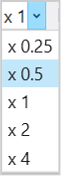
Click on the Playback Speed button to open the dropdown list and select the required playback speed from the following options:
- x 0.25
- x 0.5
- x 1
- x 2
- x 4
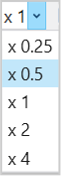
Click on the Playback Speed button to open the dropdown list and select the required playback speed from the following options:
- x 0.25
- x 0.5
- x 1
- x 2
- x 4
Stop
First Click - Click the stop button once to stop the playback of the video.

First Click - Click the stop button once to stop the playback of the video.

Second Click - Click the button to jump to the last stop position in the video.

Second Click - Click the button to jump to the last stop position in the video.

Third Click - Click the button to jump to the beginning of the section displayed in the graph.

Third Click - Click the button to jump to the beginning of the section displayed in the graph.

Full Screen
Click on the Full Screen button to maximise the Video Pane.

Click on the Full Screen button to maximise the Video Pane.


Circuit Tools 3 can automatically detect the country, circuit and track configuration for the loaded file from a database of over 800 circuits.
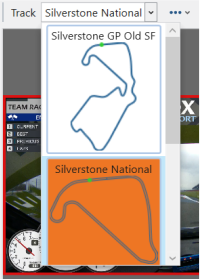
Click on the Track button to open the dropdown list of available tracks layouts for the detected track location and select the one you want to use. The image below is an example of what this dropdown can look like.
Circuit Tools 3 can automatically detect the country, circuit and track configuration for the loaded file from a database of over 800 circuits.
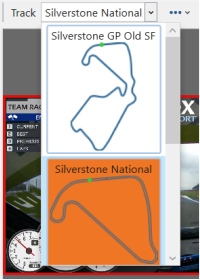
Click on the Track button to open the dropdown list of available tracks layouts for the detected track location and select the one you want to use. The image below is an example of what this dropdown can look like.
Track Map Options
Click on the Track Map Options button to open the dropdown menu.

Click on the Track Map Options button to open the dropdown menu.

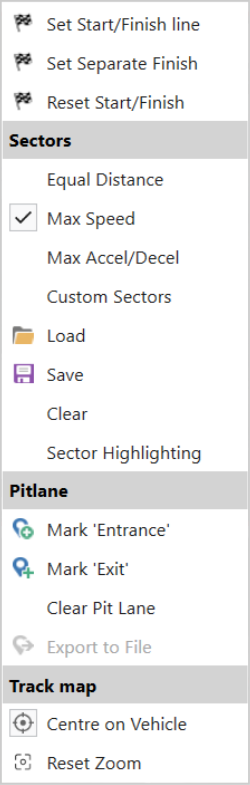
Set Start/Finish Line
Click on the required location on the track and click Set Start/Finish line to add/move the Start/Finish line to the track.
Set Separate Finish
Click on the required location on the track and click Set separate Finish to add a finish line to the track in a different location than the start line.
Reset Start/Finish
Click on Reset Start/Finish to remove any start and finish lines you have added manually.
Sectors
You can split the runs into sectors based on the following:
- Equal distance
- Max speed
- Max accel
- User defined
Click on the required sector type to enable it.
Custom Sectors
Click the Custom Sectors button to open the Sector Editor in the Track Map Pane to edit sectors directly.
Load
Click the Load button to load a sector file that can be used to configure sectors.
Save
Click the Save button to save the current setup as a sector file on your local computer.
Clear
Click the Clear button to remove any loaded sector files.
Sector Highlighting
Enable sector highlights by clicking Sector Highlighting. This will apply the sector highlighting that has been set in the Track Map settings.
The sectors will be highlighted on the Track Map and in the Graph.
Pitlane
You can set pit lane entry and exit points that you can export to load into a VBOX Pit Lane Timer.
To create a Pit Locations file for a Pit Lane Timer, load a previously recorded .vbo file that includes the pit lane into the software and set the pit lane entrance and exit as described below.
Mark 'Entrance'
Navigate to the start of the pit lane.
Place the cursor at the pit lane entry and click the Mark 'Entrance'.
The software will add a gate (25 m) at the selected location.
Mark 'Exit'
Navigate to the end of the pit lane.
Place the cursor at the pit lane exit and click the Mark 'Exit' button.
The software will add a gate (25 m) at the selected location.
Clear Pitlane
Click the Clear Pit Lane option to remove any set pit lane gates.
Export to File
When you have selected the pit lane entrance and exit points, press the Export to File button to save the pitLocationIn.txt file locally on your computer.
You can find instructions on how to load the file into a Pit Lane Timer here.
Track Map
Centre on Vehicle
Select this option to make the map centre on the vehicle as the data from the file is replayed.
Reset Zoom
If you have zoomed in or out on the map, you can click this option to reset the zoom level to the default zoom.


Click on the Settings button to open the software Settings.
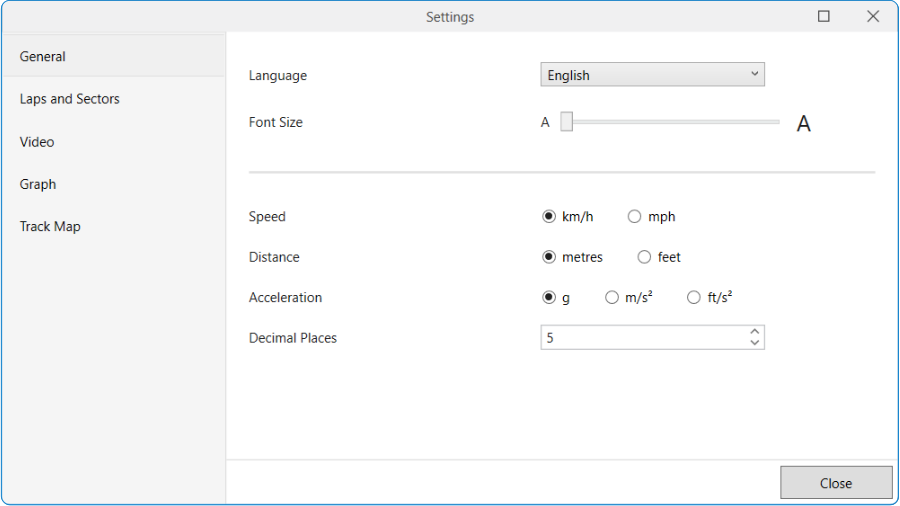
General
Language
Use the dropdown to select the language for Circuit Tools 3.
You can choose between the following options:
- English
- Deutsch
Font Size
You can change the font size for all the text elements in the Circuit Tools 3 user interface.
Use the slider to adjust the font size.
The font will change instantly.
Speed
Select the speed unit you want Circuit Tools 3 to apply to the data.
You can choose between the following options:
- km/h
- mph
Distance
Select the distance unit you want Circuit Tools 3 to use when displaying the data.
You can choose between the following options:
- metres
- feet
Acceleration
Select the acceleration unit you want Circuit Tools 3 to use when displaying the data.
You can choose between the following options:
- g
- m/s2
- ft/s2
Decimal Places
Select the number of decimals you want Circuit Tools 3 to use when displaying the data.
You can choose between the following options:
- 0
- 1
- 2
- 3
- 4
- 5
Laps and Sectors
Sector Time Format
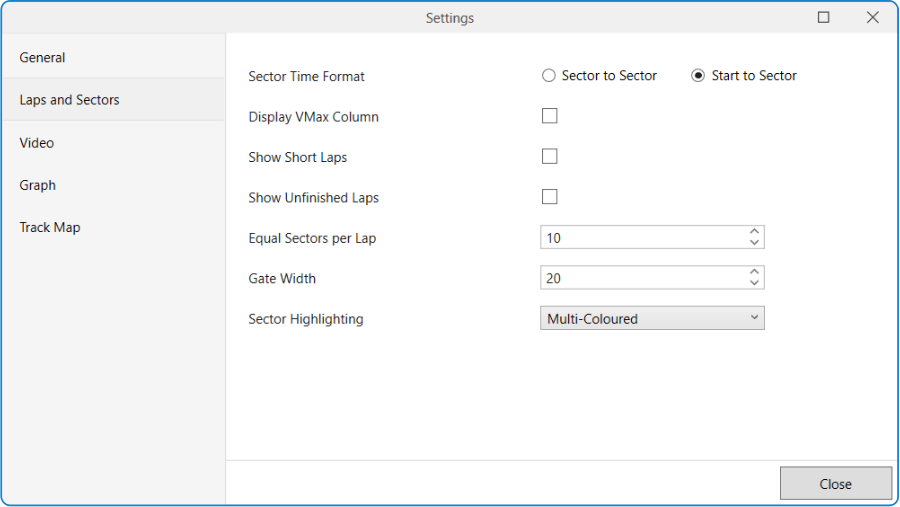
Select the time format you want Circuit Tools 3 to use for the sectors when displaying the data.
You can choose between the following options:
- Sector to Sector
- Start to Sector
Display VMax Column
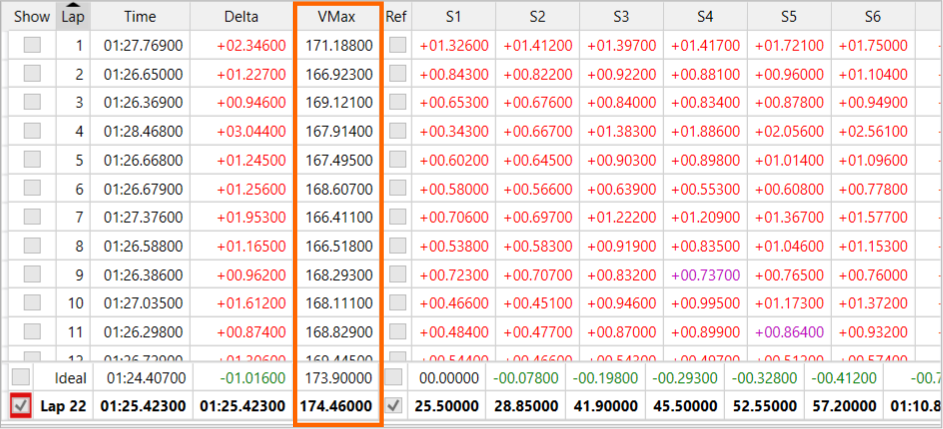
Tick this box to enable the Display VMax column. This makes Circuit Tools 3 display a column for VMax in the Laps Pane.
Show Short Laps
Circuit Tools 3 will, by default, hide laps that are longer or shorter than the fastest valid lap (by 15%).
By enabling this option, Circuit Tools 3 will display the hidden laps as well.
Equal Sectors per Lap
NOTE
This setting will only affect the data when you set the Sector Highlighting method to Equal distance in the Track Map Options.
Set the number of sectors you want to display per lap when using the Equal Distance method to display sectors.
Gate Width
Set the gate width (in metres) that you want to apply to the gates on the track.
Sector Highlighting
Click the Sector Highlighting button to open the dropdown list and select the desired colour scheme.
You can choose between the following options:
- Two Colour (Light)
- Two Colour (Dark)
- Multi-Coloured
- High Contrast
Video
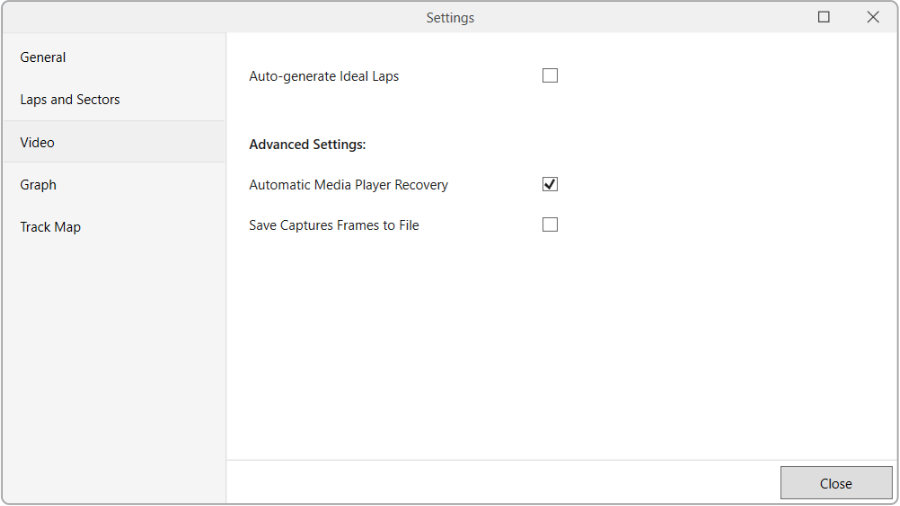
Auto-generate Ideal Laps
You can enable/disable the automatic generation of Ideal Laps in Toolbar -> Settings -> Video.
When this is disabled and you create a new Ideal Lap or Multi Lap for the first time for that session or change the sectors, start/finish line or loaded files in any way, Circuit Tools 3 will add a placeholder video frame to the Video Pane. but it will not generate the video until you click in the placeholder frame. When this is enabled and you create a new Ideal Lap or Multi Lap for the first time for that session or change the sectors, start/finish line or loaded files in any way, Circuit Tools 3 will automatically generate the video and add it to the Video Pane.
Automatic Media Player Recovery
You can enable/disable Automatic Media Player Recovery, which will detect if a video has not been updated and force a refresh of the video to recover it.
To do this, the software will capture a screenshot before and after the cursor is moved and compare them. If it deems that the video has not updated, it will automatically reload and sync the video.
Save Captures Frames to File
If you have enabled Automatic Media Player Recovery, you can enable/disable Save Captures Frames to File. When enabled, the software will save the screenshots used to detect if the video is updated to a file.
Graph

X-Axis
Select the parameter you want to display on the X-axis in the graph.
You can choose between the following options:
- Position
- Distance
- Time
Graph Line Style
Select the line style for the graph in the Graph Pane.
You can choose between the following options:
- Smooth
- Sharp
Acceleration Smoothing
You can change the level of smoothing applied to the acceleration channels displayed in the graph, such as lateral and longitudinal acceleration. Applying higher levels of smoothing will produce a cleaner-looking graph; however, it will also reduce the accuracy of the displayed results.
Select the level of smoothing you wish to apply to the acceleration.
You can choose a level between 0 and 100.
Track Map

Map Provider
Click the selected Map Provider to open the dropdown list and choose the desired provider.
You can choose between the following options:
- None
- Bing
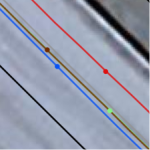
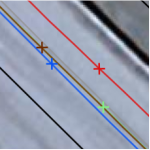
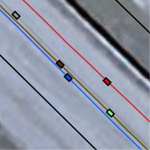
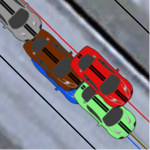
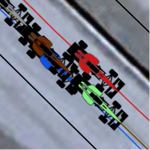
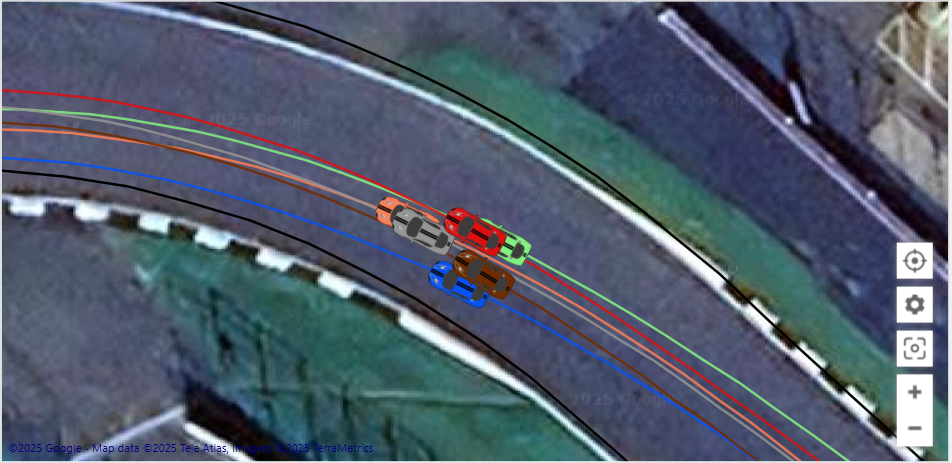
Cursor Type
Click the selected Cursor Type to open the dropdown list and select the desired cursor type.
You can choose between the following options:
| Dot | Cross | Rectangle | Car | Formulae |
|---|---|---|---|---|
|
|
|
|
|
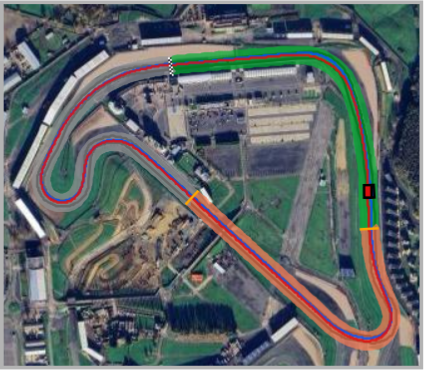
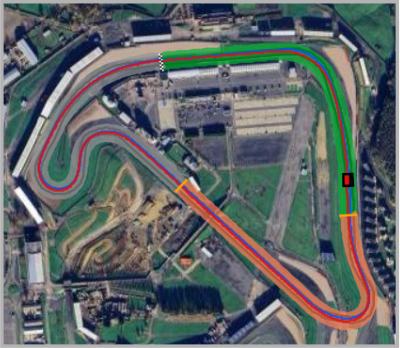
Sector Highlighting
Click the Sector Highlighting button to open the dropdown list and select the desired colour scheme.
You can choose between the following options:
- Two Colour (Light)
- Two Colour (Dark)
- Multi-Coloured
- High Contrast
The Sector headings in the Graph Pane will use the same colours as the Sector Highlight on the Track Map.
Show Sectors on Map
Enable this option to view the sectors highlighted on the Track Map.
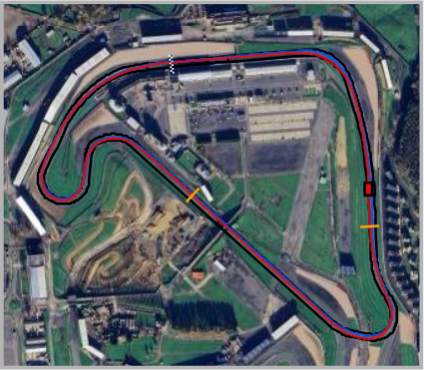
Always Show Track Outline
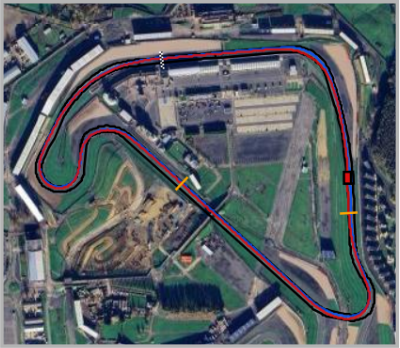
Tick the Always Show Track Outline option to keep the track outline displayed on the Track Map at all times.
Help

Click the Help button to open the user documentation for Circuit Tools 3 in Racelogic's Support Centre.