
This page contains an introduction and overview of the Racelogic VBOX LapTimer product range and what you need to know before you start using one.
This page contains an introduction and overview of the Racelogic VBOX LapTimer product range and what you need to know before you start using one.
Register your Racelogic product so that we can provide you with notifications about the latest software and firmware releases, and offer technical support.
When you purchase a VBOX LapTimer with Side Connectors, you will find the following items when you open the box:
| Product Code | Quantity | Description |
|---|---|---|
| VBLAP02-S-V1 | 1 | VBOX LapTimer Unit with connectors on the side |
| RLACS262 | 1 | GNSS Antenna |
| RLCAB14LE | 1 | Unterminated Power Cable |
| RLACS313 | 1 | 8 GB SD Card |
| RLACS287 | 1 | Lightweight Windscreen Suction Mount |
When you purchase a VBOX LapTimer with Rear Connectors, you will find the following items when you open the box:
| Product Code | Quantity | Description |
|---|---|---|
| VBLAP02-R-V1 | 1 | VBOX LapTimer Unit with connectors on the rear |
| RLACS262 | 1 | GNSS Antenna |
| RLCAB14LE | 1 | Unterminated Power Cable |
| RLACS313 | 1 | 8 GB SD Card |
| RLACS359 | 1 | Rear Connector Bracket Assembly |
Depending on the application requirements, you may need to purchase additional accessories for your LapTimer.
| Product Code | Description |
|---|---|
| RLCAB010LE | In-Car Power Supply |
| RLACS286 | Roll Cage Camera Mount with Thumb Nut for RLVBLAP-S |
| RLCAB122 | VBOX LapTimer Connection Cable for connecting VBOX LapTimer to a Video VBOX Pro or VBOX Video HD2 |
The LapTimer can be powered using any suitable 12 V power supply.
Wire the unterminated end of the RLCAB014LE cable directly to a compatible power supply or to a suitable connector for the power source being used.
Connect the cable to the upper Lemo port on the unit.
When the LapTimer powers on, the LEDs illuminate white and sweep across the LED array to indicate that the unit is powering up and initialising.
The LapTimers can record to MMC, SD, SDHC and SDXC media cards formatted in a FAT or FAT32 format.
SDXC cards will be formatted as exFAT by default, a format type not supported by LapTimers. You can still use them, as long as you reformat them to FAT32 first. There are various free third-party applications available online to format SDXC cards.
If you do not have an SD card inserted in your VBOX LapTimer, it will show a No Media message while the vehicle is moving at speeds of 5 mph or less. This makes it easier for you to make sure that you have an SD card inserted before you start your logging.

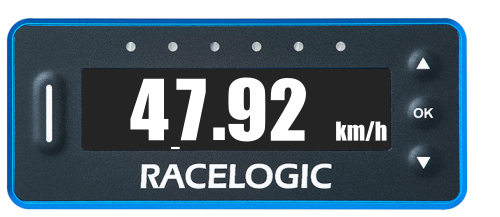
Use the Up and Down arrow buttons to cycle through available display modes and navigate the settings.
Use the OK button to configure the settings.
The OK button also has additional functionalities depending on the mode currently displayed on the screen.
See the list below for the full list of functionalities for the different display modes.

Use the Up and Down arrow buttons to cycle through available display modes and navigate the settings.
Use the OK button to configure the settings.
The OK button also has additional functionalities depending on the mode currently displayed on the screen.
See the list below for the full list of functionalities for the different display modes.
| Mode | Function |
|---|---|
| Speed | Start and stop logging |
| Max Speed | Reset max speed value |
| Predictive Lap Timing | Single press fixes the current or stored lap as the reference lap, depending on the chosen settings. |
| Predictive Lap Timing | Press and hold for 5 seconds to clear the stored reference lap, reset the lap count and clear all stored lap times. |
| Lap Timing | Set a new start/finish line |
| Lap Count | No action |
| Lateral G | Reset max g reached |
| Longitudinal G | Reset max g reached |

Press the Shortcut button in any display mode (except Speed Mode) to make the unit display Speed Mode for 10 seconds before returning to the selected display mode.
Press the Shortcut button with the settings menu open to exit the settings and go back to the selected display mode.

Press the Shortcut button in any display mode (except Speed Mode) to make the unit display Speed Mode for 10 seconds before returning to the selected display mode.
Press the Shortcut button with the settings menu open to exit the settings and go back to the selected display mode.