
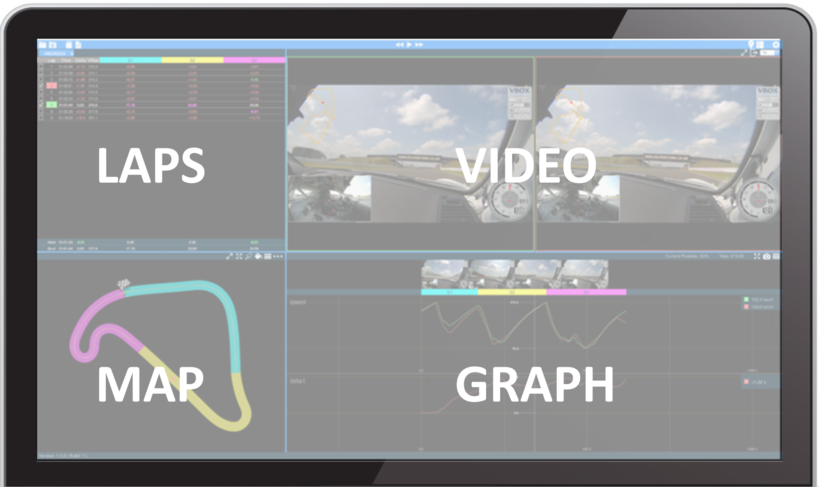
When you have loaded a data file into the application, the default screen view will include track/map, laps, graph and video areas. A selection of buttons on the top bar lets you load new files, close files, export files, control the playback, reset the screen layout and access the settings.
The main analysis screen comprises of 4 different areas: Laps, Map, Video and Graph. It is possible to show, hide and resize each pane as desired.
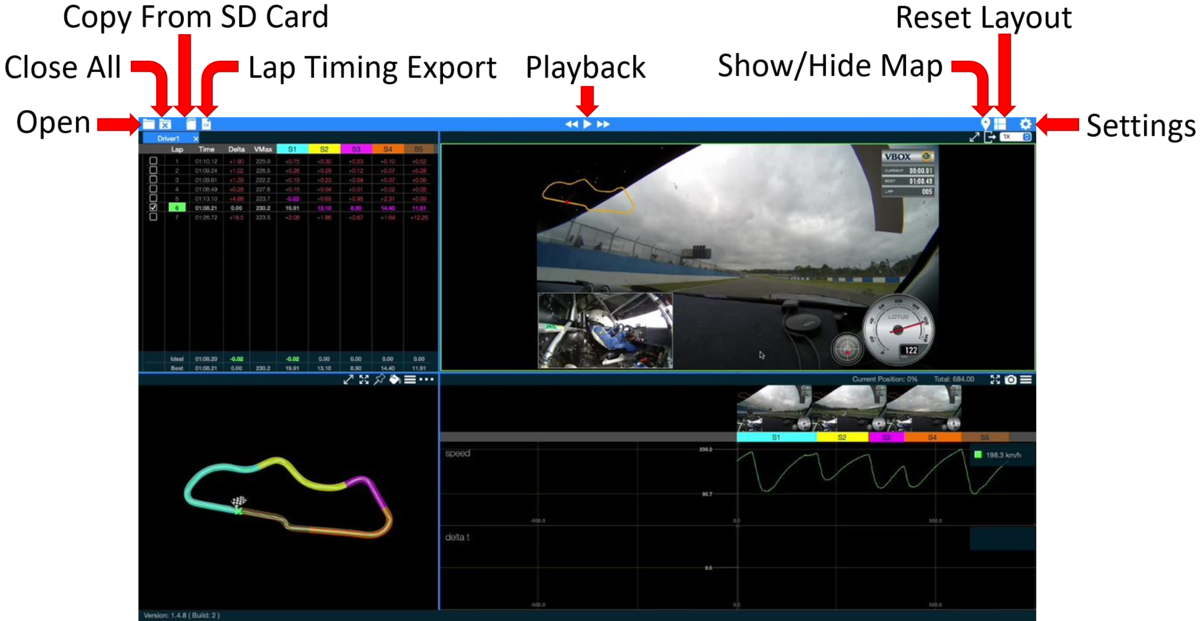
The top toolbar contains a selection of buttons you can use to configure and control the software.
TIP
If you hover the mouse over any buttons, you will see a text box showing helpful hints and more explanation about the function of that button.
By clicking on the Open toolbar button on the top left of the screen you can open a new file from your computer. You can find more information on this here.

By clicking on the Open toolbar button on the top left of the screen you can open a new file from your computer. You can find more information on this here.

Pressing the Close All toolbar button on the top left of the screen will close all open files.

Pressing the Close All toolbar button on the top left of the screen will close all open files.

Clicking on the SD Card icon toolbar button on the top left of the screen will open the file transfer wizard, where you can copy files from your SD card to your computer. You can find more information on this here.

Clicking on the SD Card icon toolbar button on the top left of the screen will open the file transfer wizard, where you can copy files from your SD card to your computer. You can find more information on this here.

Pressing the Export toolbar button on the top left of the screen will export lap times as a .csv file.

Pressing the Export toolbar button on the top left of the screen will export lap times as a .csv file.

By using the Playback toolbar buttons on the top of the screen to play, pause, step backwards and step forwards in the video.

By using the Playback toolbar buttons on the top of the screen to play, pause, step backwards and step forwards in the video.

The Map Pin toolbar button on the top of the screen allow you to toggle the map on or off.

The Map Pin toolbar button on the top of the screen allow you to toggle the map on or off.

You can use the Reset Layout toolbar button on the top left of the screen to reset the default screen layout.

You can use the Reset Layout toolbar button on the top left of the screen to reset the default screen layout.

You can use the Settings toolbar button on the top right of the screen to change the lap alignment, the session display mode, lap options and the units used for speed, distance or height.
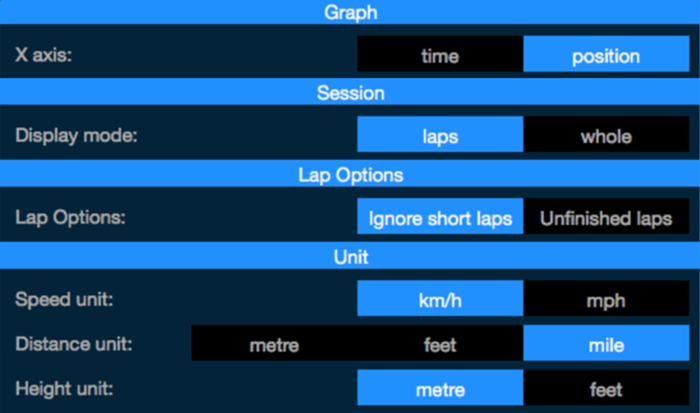
To change the size of the different windows, click and drag the blue borders surrounding the windows.
The following shortcut keys also allow the screen layout to be customised quickly:
Slide left/right
Command + left/right arrow
Slide up/down
Command + up/down arrow
Show/hide Map
Command + M