
LabSat uses a binary Intermediate frequency to downconvert GPS RF data into a binary file, whereas LabSat 2, LabSat 3, LabSat 3 Wideband and LabSat 4 store GNSS RF data as an I&Q binary file. This means that existing LabSat scenarios cannot be run natively on the later versions and vice versa.
If you need to run a scenario file that is incompatible with your LabSat unit, you can use the LabSat scenario converter software. You can download the software from the LabSat Website. The software can convert most files from one LabSat version to a file type compatible with your unit, giving you the ability to perform a one-time conversion of one or more files.
IMPORTANT
You can only convert GNSS data files.
Files that contain external data, such as CAN bus or serial data, cannot be converted.
| File Type | LabSat | LabSat 2 | LabSat 3 | LabSat 3 Wideband | LabSat 4 |
|---|---|---|---|---|---|
| LabSat (*.bin) | ✓ | ✕ | ✕ | ✕ | ✕ |
| LabSat 2 (*.ls2) | ✕ | ✓ | ✕ | ✕ | ✕ |
| LabSat 3 (*.ls3) | ✕ | ✕ | ✓ | ✕ | ✕ |
| LabSat 3 Wideband (*.ls3w) | ✕ | ✕ | ✕ | ✓ | ✓ |
| LabSat 4 (*.ls4) | ✕ | ✕ | ✕ | ✕ | ✓ |
NOTE
This software does not support the following conversions:
- LabSat 3 Wideband (*.ls3w) files to any other format.
- LabSat 2 (*.ls2) files to LabSat 3 Wideband (*.ls3w) format.
- Specify the file you want to convert in the Source Scenario section.
You can either use the Browse button and navigate to the file or you can type the file location manually.
When the file is detected, the scenario information will be displayed in the Scenario Details section.
- Click on the dropdown menu for the Destination Type to select the file type you want to convert the file to.
- Choose the file location you want to save the converted scenario to in the Destination Folder section.
You can either use the Browse button and navigate to the location in File Explorer or type the desired location into the text box manually.
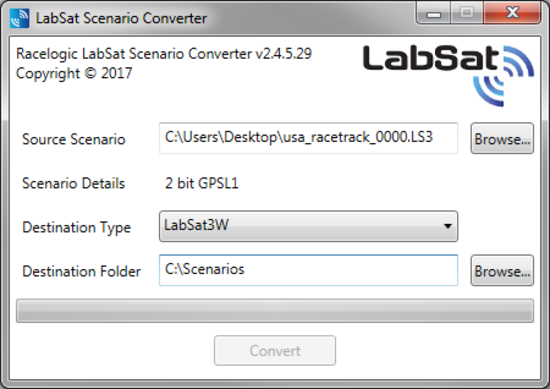
- Specify the file you want to convert in the Source Scenario section.
You can either use the Browse button and navigate to the file or you can type the file location manually.
When the file is detected, the scenario information will be displayed in the Scenario Details section.
- Click on the dropdown menu for the Destination Type to select the file type you want to convert the file to.
- Choose the file location you want to save the converted scenario to in the Destination Folder section.
You can either use the Browse button and navigate to the location in File Explorer or type the desired location into the text box manually.
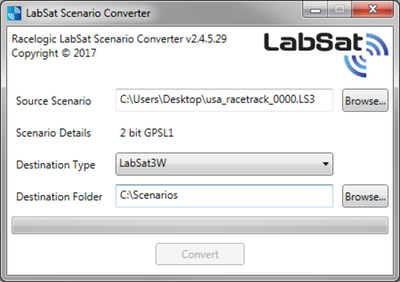
IMPORTANT
- The LabSat 3 file format requires a folder for the data files.
When you convert LabSat 3 (*.ls3) to LabSat 2 (*.ls2) or LabSat (*.bin) formats, you must select the first file in the LabSat 3 scenario folder for the conversion. The software will automatically convert all the files in the folder.
- When you move LabSat 3 scenarios between media, you must make sure that you move the entire scenario folder and not just the individual files and that no other files are stored in the scenario folder. LabSat 3 Wideband and LabSat 4 scenarios consist of two files, .ini and .ls3w/ls4. Both of these files need to remain together when you move the files.
- To convert LabSat 4 files to LabSat 3 Wideband format, the bandwidth and quantization of all RF channels must be identical, and the quantization is also limited to a maximum of 2 bits.