
Installation Guide
This Installation Guide will guide you through the steps required to install VBOX Test Suite.
IMPORTANT
Microsoft Windows 7 SP1 or newer is required (must be compatible with .Net Framework 4.7.1).
Installation File
Download the installation file from the Automotive Website.
Once the installation file is downloaded to your directory, double-click it to start the install.
Follow the instructions in the VBOX Test Suite Setup assistant.
NOTE
You may require administrator rights to install the installation file.
Registration
VBOX Test Suite is free to download and use, however, you will not have access to the full range of features unless you register the Software.
When you launch VBOX Test Suite for the first time, you will be prompted to enter your name, email address, company name and department in the Registration pop-up as illustrated below.
When you have entered the details, click the Register button.
To complete the registration you must have a valid internet connection.
Contact Racelogic (vbox@racelogic.co.uk) if your device does not have an internet connection.
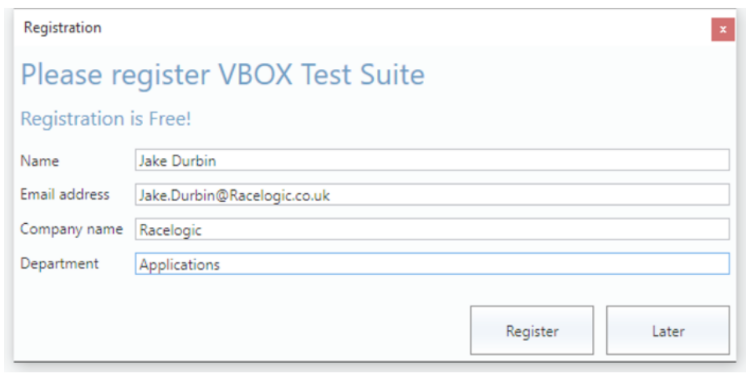
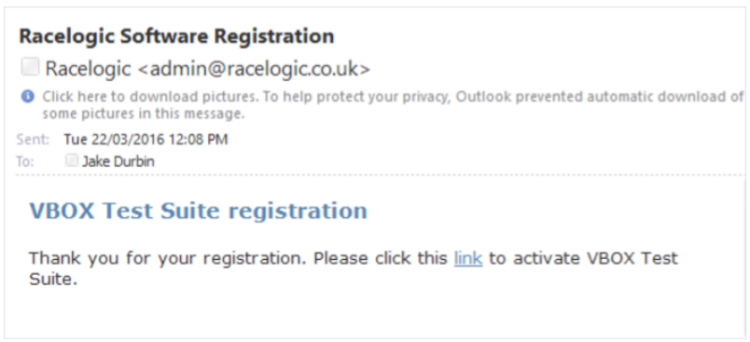
When you click on the Register button, the software will automatically send a confirmation link to the email address you entered.
Follow the link in the email to activate VBOX Test Suite and enable access to all the features.
Launch Application
When the VBOX Test Suite installation has been completed, you can launch the software by selecting it from the list of programs on your computer, or by opening a configuration file (.vbts) or a VBOX file (.vbo/.vbb).
- If you open the software from the main program list, you will be presented with a pre-loaded Workspace and the software will be Offline ready to load a saved data file (.vbo, .vbb or .dbn files).
- If you open the software by opening a .vbts file, the software will launch with the settings that were saved in the .vbts file, such as any open tests and their test configurations, the window layout and the units.
- If you open the software by opening a VBOX file, the software will open with the loaded file without any workspaces or configurations added.
Workspace
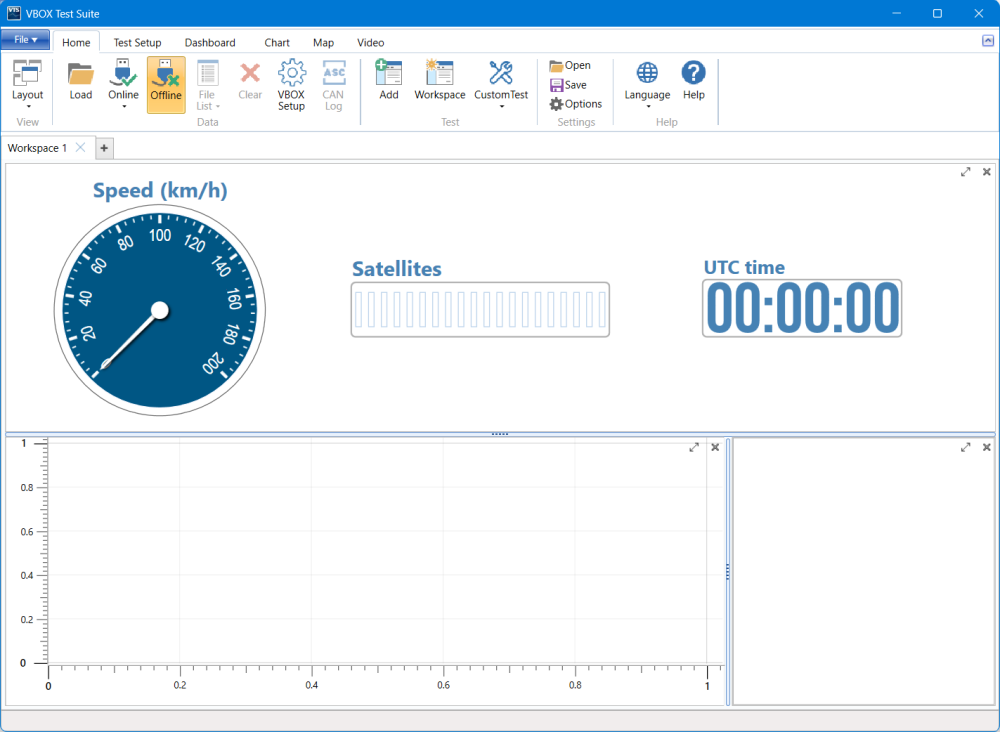
The workspace is an area that has been designed for non-test-specific file analysis and it is automatically loaded every time you launch the software without a file loaded.
You can use both offline and online modes with it and it contains 4 main areas: a dashboard area, a chart area, a map area and a video area.
Add as many workspaces as you need. Use the Add Test button to open a new workspace tab with a preset test plugin or use the + icon on the workspace tabs to open a new blank test tab that you can populate manually.
If you want an empty tab to be populated as a workspace, select the relevant tab and click on the Workspace button in the Home tab on the ribbon.
Load, View and Save Data
Offline and Online Modes
VBOX Test Suite has two modes for viewing data:
The Online mode is for viewing live data from a VBOX data logger and performing live vehicle tests.
The Offline mode is for post-processing of existing files.
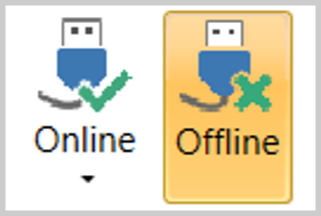
VBOX Test Suite has two modes for viewing data:
The Online mode is for viewing live data from a VBOX data logger and performing live vehicle tests.
The Offline mode is for post-processing of existing files.
Load a Saved File
To load a saved file, you must first ensure that VBOX Test Suite is in offline mode.
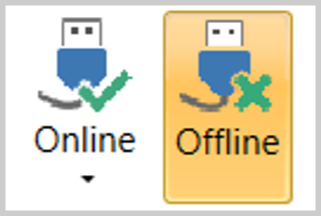
If the Offline button on the home tab on the ribbon is orange, the software is already in offline mode.
If the button is white, you can enable offline mode by clicking it.
Once the software is offline, you can load a file by clicking the Load button (on the Home tab on the ribbon) or the Load Data option (in the File menu).
A File Explorer window will pop up, where you can select a previously saved data file (.vbo or .dbn).
Opening a file will load the data into all open tests and populate the chart and test areas.
To load a saved file, you must first ensure that VBOX Test Suite is in offline mode.
If the Offline button on the home tab on the ribbon is orange, the software is already in offline mode.
If the button is white, you can enable offline mode by clicking it.
Once the software is offline, you can load a file by clicking the Load button (on the Home tab on the ribbon) or the Load Data option (in the File menu).
A File Explorer window will pop up, where you can select a previously saved data file (.vbo or .dbn).
Opening a file will load the data into all open tests and populate the chart and test areas.
View Live VBOX Data
To view live data from a VBOX data logger, you must first connect the VBOX unit to the PC. You can do this via a hardware connection or a Bluetooth connection.
Next, you must enable the online mode by clicking the Online button and the Remote Server option in the dropdown.
When you use the online mode, the dashboard gauges will automatically display the live data from the VBOX unit's serial stream and Start, Stop and Reset buttons will appear on the dashboard to control the open tests.
Save Live VBOX Data
When you use online mode, you can select to save the live VBOX data as a .vbo, .vbb or .csv file when you complete a test.
Navigate to the File menu on the ribbon and click Save As.
This will open a pop-up window where you can choose calculated channels, configured maths channels and specific test-plugin channels you want to include in the file.
If there are multiple test sessions, you can choose which to save using the dropdown list in the Session to Save option.
Click OK to continue.
Name the file and save it locally on the PC.
Add or Replace Test
You can add pre-defined tests in VBOX Test Suite.
Press the Add button to open the Add Test pop-up window and browse the available tests.
The tests are split into categories, such as Performance Test, ADAS, Tyre, Brake, etc.
When you have selected a test, the software will open a new workspace tab and a pop-up window with the Settings for the test will be displayed in the foreground.
To make it quicker and easier to swap the current test to a different test, VBOX Test Suite displays your favourite tests in shortcut menus on the home tab. You can select favourite tests by clicking on the star next to a test in the Add Test window.