
This page contains an introduction and overview of the Racelogic MFD Touch product and what you need to know before you start using it.
Display GPS and CAN derived data channels from a connected VBOX unit.
MFD Touch provides real-time calculation and presentation of performance tests and lap timing results, eliminating the need for post-processing.
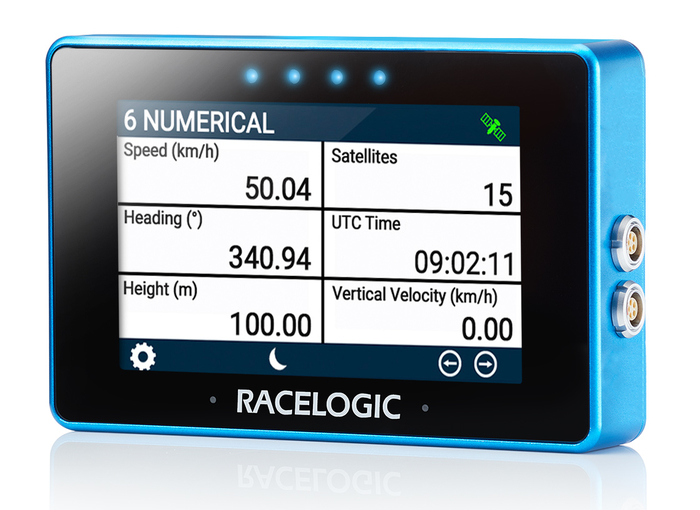
This page contains an introduction and overview of the Racelogic MFD Touch product and what you need to know before you start using it.
Display GPS and CAN derived data channels from a connected VBOX unit.
MFD Touch provides real-time calculation and presentation of performance tests and lap timing results, eliminating the need for post-processing.
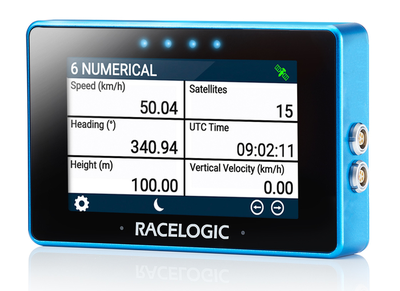
Register your Racelogic product so that we can provide you with notifications about the latest software and firmware releases, and offer technical support.
| Product Code | Quantity | Description |
|---|---|---|
| VBMFDT | 1 | MFD Touch Unit |
| RLCAB005-C | 1 | VBOX to VBOX Module Cable (2 m) |
| RLACS331 | 1 | Swivel Neck Richter Suction Mount |
| RLACS313 | 1 | 8 GB SD Ultima Pro UHS-1 Memory Card |
Data Loggers
- VBOX 4
- VBOX 3i ADAS
- VBOX 3i
- VBOX IISX
Speed Sensors
- VBOX 3iS
- VBOX 100 Hz Speed Sensor
The table below shows the supported VBOX units, the MFD Touch firmware version that introduced the support, and any minimum firmware version required on the VBOX unit.
Where no minimum firmware version is listed, all firmware versions are supported.
If a VBOX unit requires a minimum firmware version, both conditions must be met:
- MFD Touch must be on the listed firmware version or later
- the VBOX unit must be on the listed firmware version or later
| VBOX Unit | MFD Touch Firmware version | VBOX Unit Firmware Version |
|---|---|---|
| VBOX 4 | v1.5.5.113 and later | -- |
| VBOX 3i ADAS | v1.5.3.103 and later | -- |
| VBOX 3i | v1.1.1.26 and later | -- |
| VBOX 3iS | v1.4.1.64 and later | v1.2.9388 and later |
| VBOX IISX | v1.5.5.113 and later | -- |
| VBOX 100 Hz Speed Sensor | v1.4.1.64 and later | v1.8.1664 and later |
MFD Touch comes supplied with an 8 GB SDHC card in a FAT32 file format, which is the only file format supported.
Use this card to save and load settings, save test results and update the firmware.
If you have an SD card inserted, the display will remember settings values between each use and open the last used screen when it starts again. If you do not have an SD card inserted, MFD Touch will boot using the default settings.
If you are looking to purchase a new SD card, we recommend a write speed of more than 7 MB/s (4 MB/s is the absolute minimum) and a speed class of 10 (4 is the absolute minimum). Use SD cards from quality brands such as Transcend, SanDisk, Kingston or Lexar for best results.
SDHC cards (2 GB to 32 GB)
Supplied or purchased SDHC cards are formatted in the FAT32 file format. This format is supported by MFD Touch.
SDXC cards (64 GB and above)
Purchased SDXC cards will be formatted in exFAT or NTFS file formats; these formats are not supported by MFD Touch (please reformat as per instructions below).
IMPORTANT
If an SD card is formatted in the exFAT or NTFS file formats, it will need to be reformatted into a FAT32 file system before it will work with MFD Touch.
FAT32 reformatting for media with sizes up to 32 GB can be done directly within Windows by right-clicking on the media and selecting 'Format'.
If you would like to format media with sizes above 32 GB into a FAT32 file system, this cannot be done directly in Windows as it is not the standard formatting for the file. However, many third-party software programs can be used to reformat media to allow them to work correctly with our products.
We can recommend This Tool as a free option from the SD card organisation.
MFD Touch is powered via the connection to the VBOX unit.
The display will automatically power on when powered.
While the display is starting, it will display the following splash screen:
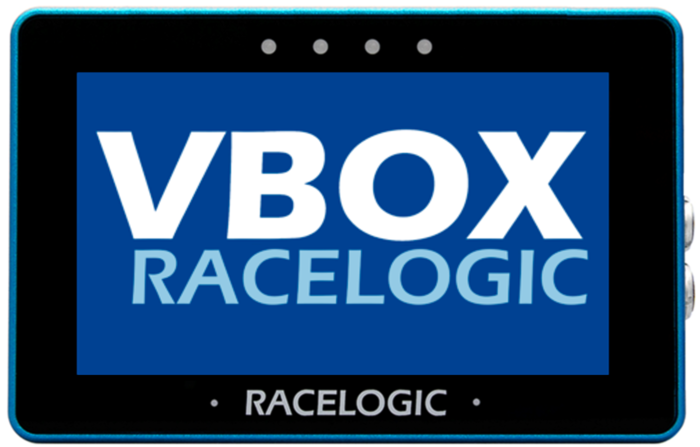
As MFD Touch boots up quicker than the VBOX unit, it will display 'Waiting for VBOX' with a scrolling progress bar until the VBOX is fully booted up.
Data Display
The very first time the unit is started, it will present the 6 Numerical display screen. After this, it will automatically display the last used data display on power-up (if you have an SD card inserted).
MFD Touch can display up to 6 defined VBOX parameters on a data display screen, depending on the selected display screen type.
It supports a maximum of 10 data display screens at any one time.
Refer to the Data Displays section under User Interface for more information.
When the MFD Touch is connected to a VBOX data logger, CAN channels that have been selected for logging can be used as display parameters.
See the Configuration page for details on enabling and selecting CAN channels.
IMPORTANT
If the data logger is configured to log 32 or more CAN channels, selected CAN parameters on the MFD Touch may change unexpectedly.
If this happens, reduce the number of logged CAN channels.
PRODUCT LIMITATION
CAN data source is not available with VBOX 3iS and VBOX Speed Sensor units.
While MFD Touch is not a data logger, you use it to control start/stop the logging on the connected VBOX unit.
The Logging Status Icon will be displayed in the header when the connected unit logging and writing data to the storage media.
CAUTION
Do not remove the storage media in the connected VBOX while the Logging Status Indicator is visible on the MFD Touch screen.
This indicates that the VBOX unit is actively logging and writing data to the inserted storage media. Removing the media during this process may result in data loss or file corruption, and the media may need to be repaired before it can be used again.
Always confirm that the VBOX unit has stopped logging before removing the media card in it.
Before using the unit, make sure that:
- The SD card is inserted if you want to retain settings and save results
- Make sure that the connections are correct and secure
- If no data appears, check that the VBOX unit has fully booted
IMPORTANT
- Confirm that the logging on the connected VBOX unit has stopped before removing the SD card.
- Wait for a stable satellite signal before starting a test.
Product Limitation
CAN data source is not available with VBOX 3iS and VBOX Speed Sensor units.
For a CAN channel to be available for selection, it must be selected to be logged on the VBOX data logger in the VBOX Setup software and be compatible with the display element on MFD Touch.