
This page explains how to use an NTRIP Modem with compatible VBOX data loggers.
The required configuration will depend on the connected product.
- VBOX 4 Product Range
- VBOX Touch
- VBOX 3i ADAS
- VBOX 3i Product Range
- Connect the required equipment to the VBOX unit. Refer to the relevant VBOX unit's user guide for more information about required hardware setup.
- Connect the NTRIP Modem to the VBOX unit and configure it (if required). Refer to the NTRIP Modem User Guide for more information about these processes.
- VBOX 4 ADAS
- VBOX 4 Dynamics
- VBOX 4
VBOX 4 units must have the correct DGPS mode enabled via the VBOX Setup Software before they are capable of receiving and using the DGPS correction information transmitted by an NTRIP service.
NTRIP is disabled by default, but you can enable it in the VBOX Setup Software:
- Connect the VBOX to a computer running the latest version of VBOX Setup.
- Connect to the VBOX unit by selecting the relevant COM Port and clicking Connect.
- Open the GNSS menu.
- Go to the DGPS / RTK section and select NTRIP as the Mode, and make sure that the RS232 baud rate is set to 115200 - Racelogic.
- Click Write to unit to upload the new settings to the VBOX unit.
VARIANT LIMITATION
RTK input is only available on VBOX Touch RTK units.
VBOX Touch must have NTRIP Mode enabled before it can receive and use the DGNSS correction information transmitted by the Network RTK Service Provider.
- Apply power to the VBOX Touch unit and go to the Settings menu by tapping the Settings button on the left corner of the footer.
- Tap the Serial Port button.
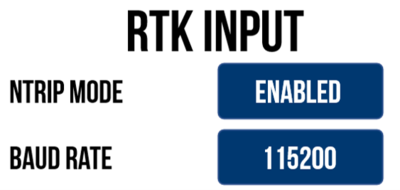
- Under RTK Input, enable NTRIP Mode and make sure that the DGPS Baud Rate is set to 115200.
NOTE
You can also change the 3rd tracked constellation (swap between BeiDou and GLONASS) in the GNSS Selection on the General Settings screen.
For VBOX 3i ADAS to be able to receive and use the DGPS correction information transmitted by the Network RTK Service Provider, the correct DGPS mode must be enabled in VBOX Setup.
- Connect the VBOX to a computer running the latest VBOX Setup software.
- Open the GPS menu.
- Tick the Enable NTRIP box in the DGPS/RTK section.
- Make sure that the RS232 baud rate is set to 115200 - Racelogic.
- Select Write to unit.
NOTE
Alternatively, you can use VBOX Manager to enable NTRIP on VBOX 3i ADAS units. Refer to the Setup Menu structure in the VBOX Manager User Guide to see where to find the NTRIP and DGNSS Rate (Baud Rate) settings.
VBOX 3i units must have the correct DGPS mode enabled via the VBOX Setup Software before they are capable of receiving and using the DGPS correction information transmitted by an NTRIP service.
NTRIP is disabled by default, but you can enable it in the VBOX Setup Software:
- Connect the VBOX to a computer running the latest version of VBOX Setup.
- Connect to the VBOX unit by selecting the relevant COM Port and clicking Connect.
- Open the GPS menu.
- Go to the DGPS/RTK section and select NTRIP as the DGPS mode and 115200 as the baud rate.
- Select Write to unit to upload the new settings to the VBOX 3i unit.
IMPORTANT
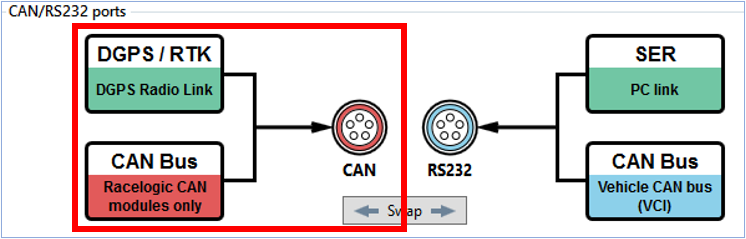
Make sure that DGPS/RTK is assigned to the CAN port in the CAN menu.
NOTE
Alternatively, you can use VBOX Manager to enable NTRIP on VBOX 3i RTK units. Refer to the Setup Menu structure in the VBOX Manager User Guide to see where to find the NTRIP and DGNSS Rate (Baud Rate) settings.